

Provider Credential set-up
Adding a provider credential
- Navigate to Provider Credentialing. This would be under the Utilities section
- Once you are on the page, click on Add Credentialing
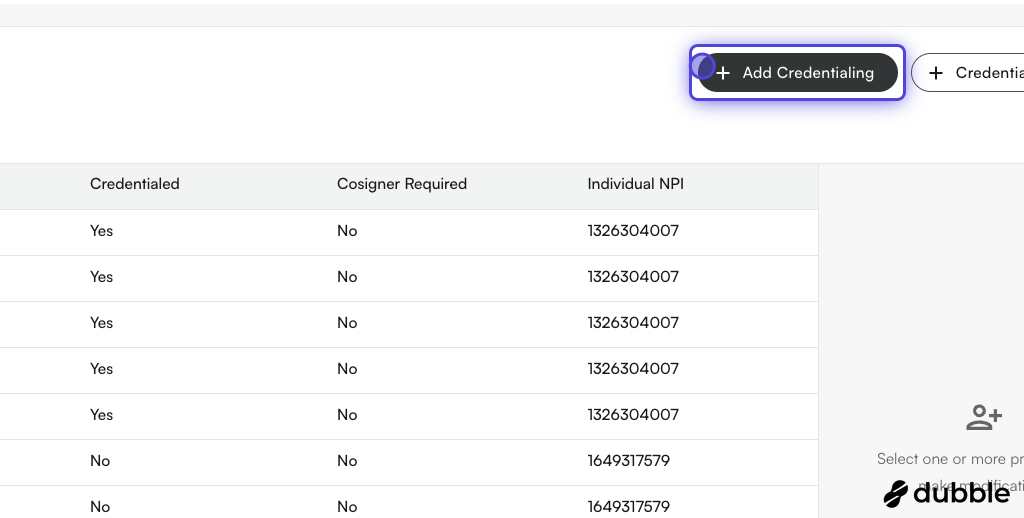
- Search for Provider names. We also show the individual NPIs as well. Select one provider.
- Search for Insurance Companies. Select one of the insurance companies. You can search with insurance companies’ name as well.
- Select Credentialing Type. You can select list of credentialing types per entry. Supported entries include
- Unknown
- Unknown
- Group
- Individual
- Pending
- None
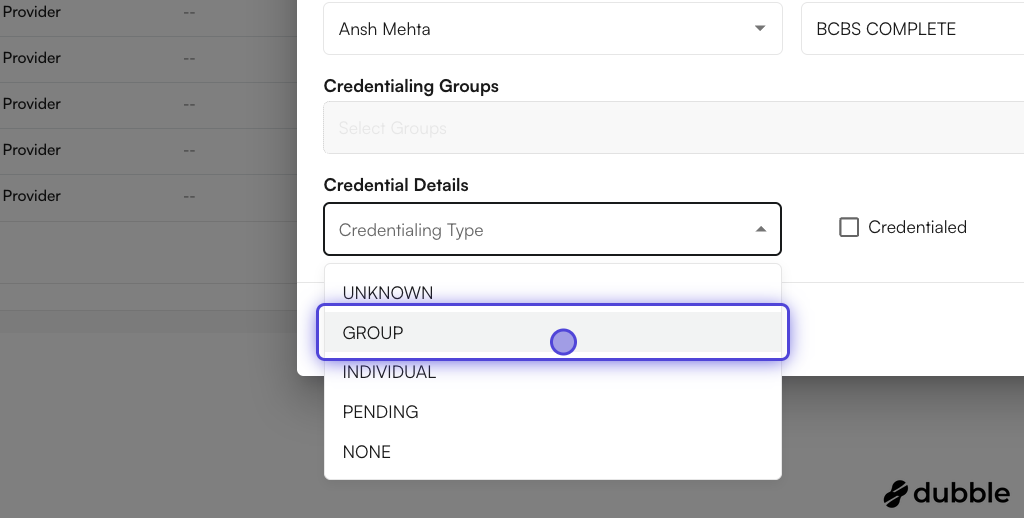
- Based on the credentialing type selected, check the relevant values If provider is already credentialed,
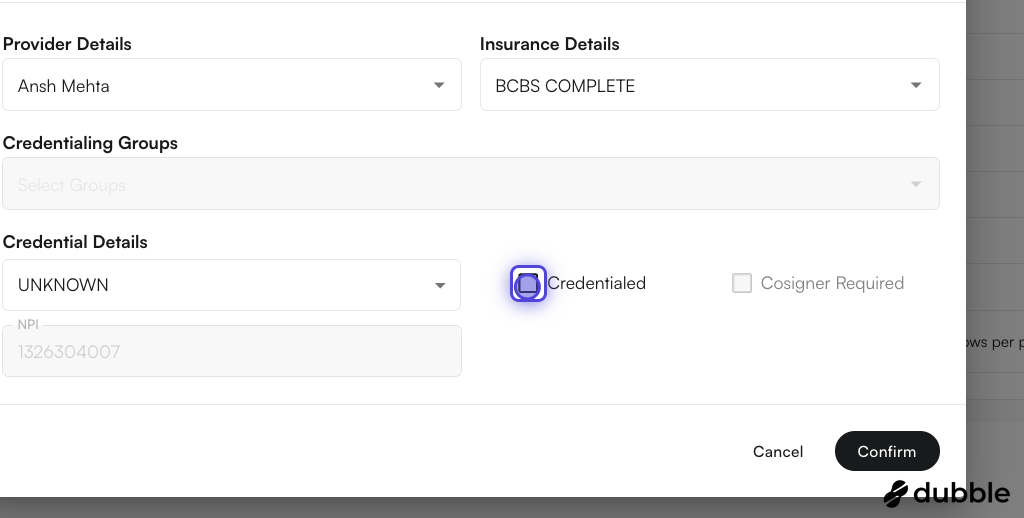
- Click on Confirm to save your changes
- You can see the success message!
Bulk edit provider credentials
You can select multiple rows across different providers, insurance companies, and credentialing groups.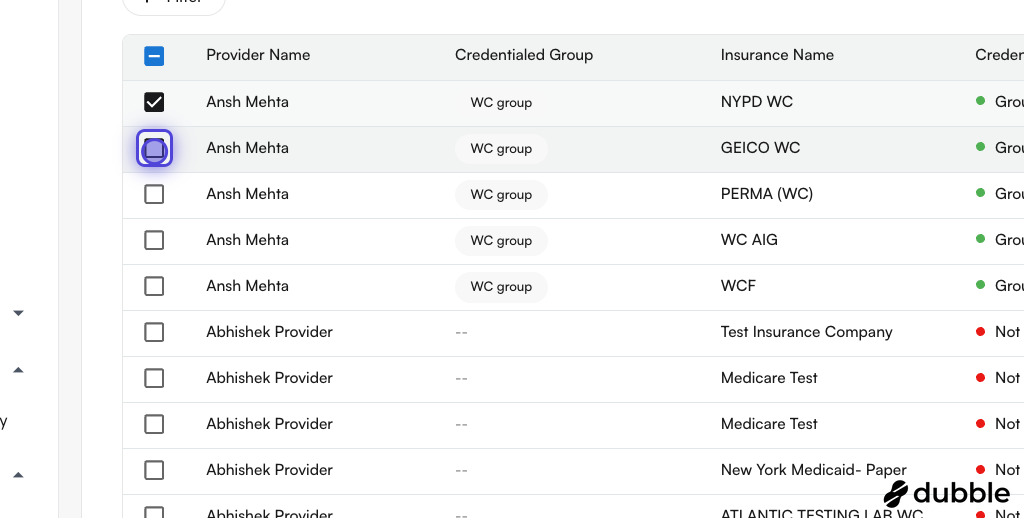
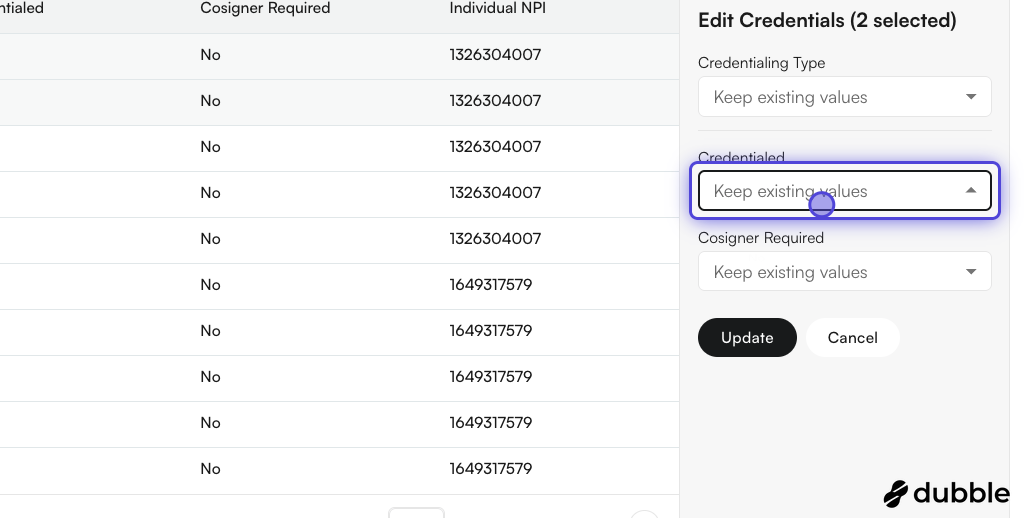
- You can select multiple rows on the table
- On the right side of the table, you can see the edit section. You have the ability to change the:
Credentialing typeCredentialedCosigner Required
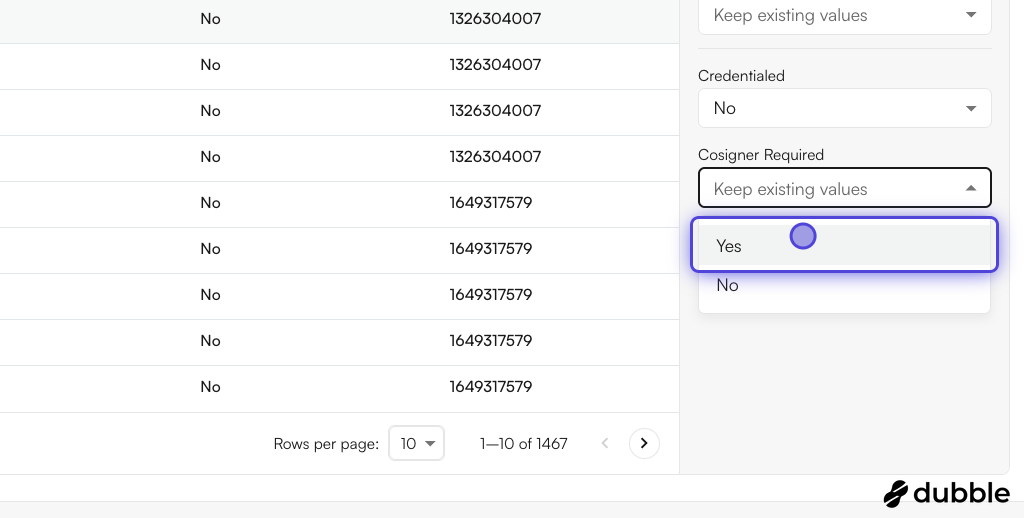
- Changing values for the selected rows. You can either keep the existing values for these rows, or apply the same selected settings to all rows. In this case, we are setting all selected rows as
Yesfor Cosigner required.
- Click on Update to save your changes
- You can see the success message!
Select all results in a filter for bulk editing
Select all results in a filter for bulk editing.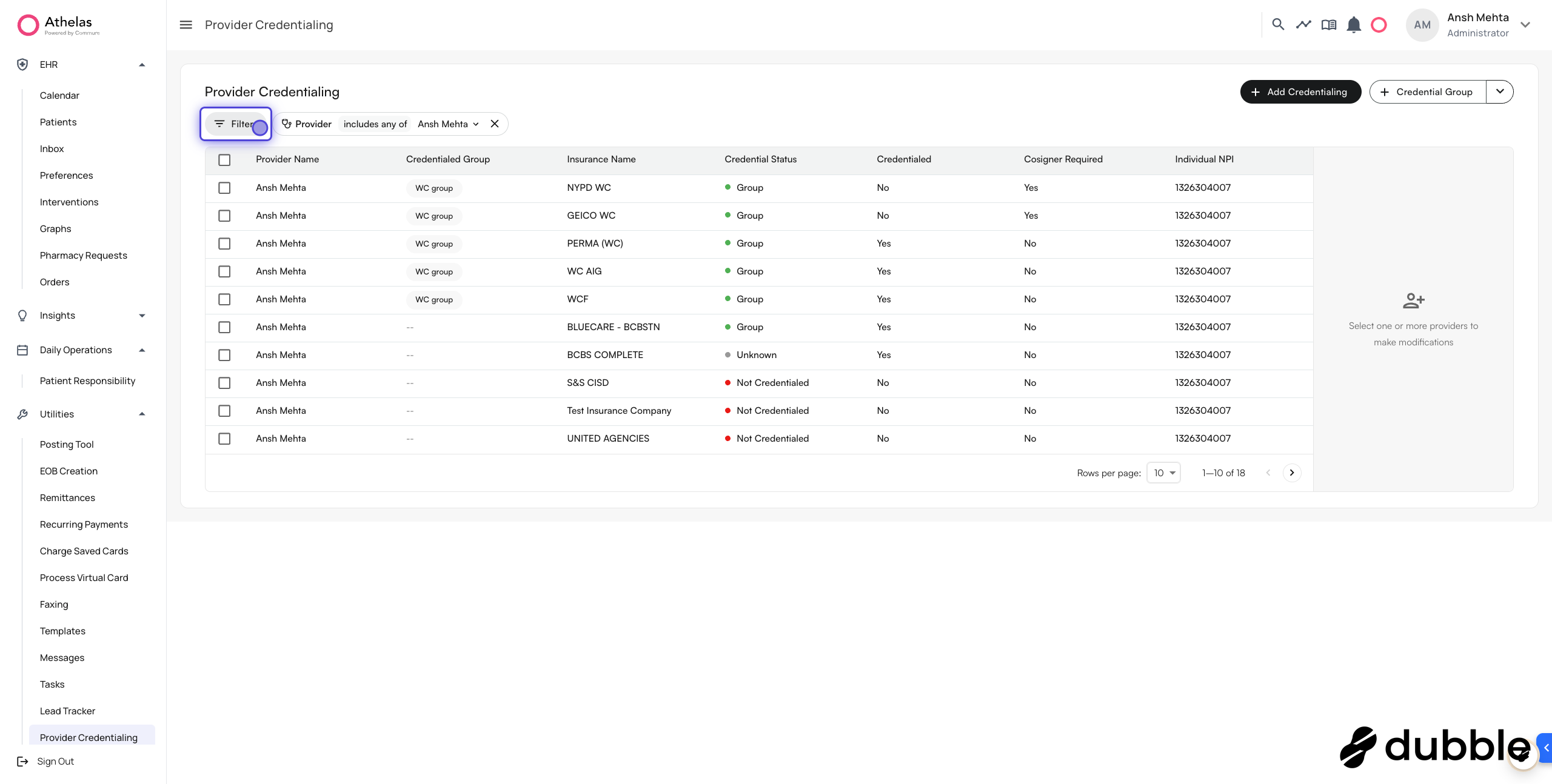
- Select the adequate filters
- You can see we are showing 1-10 rows out of 18 total
- Check the square checkbox on the top right of the table header
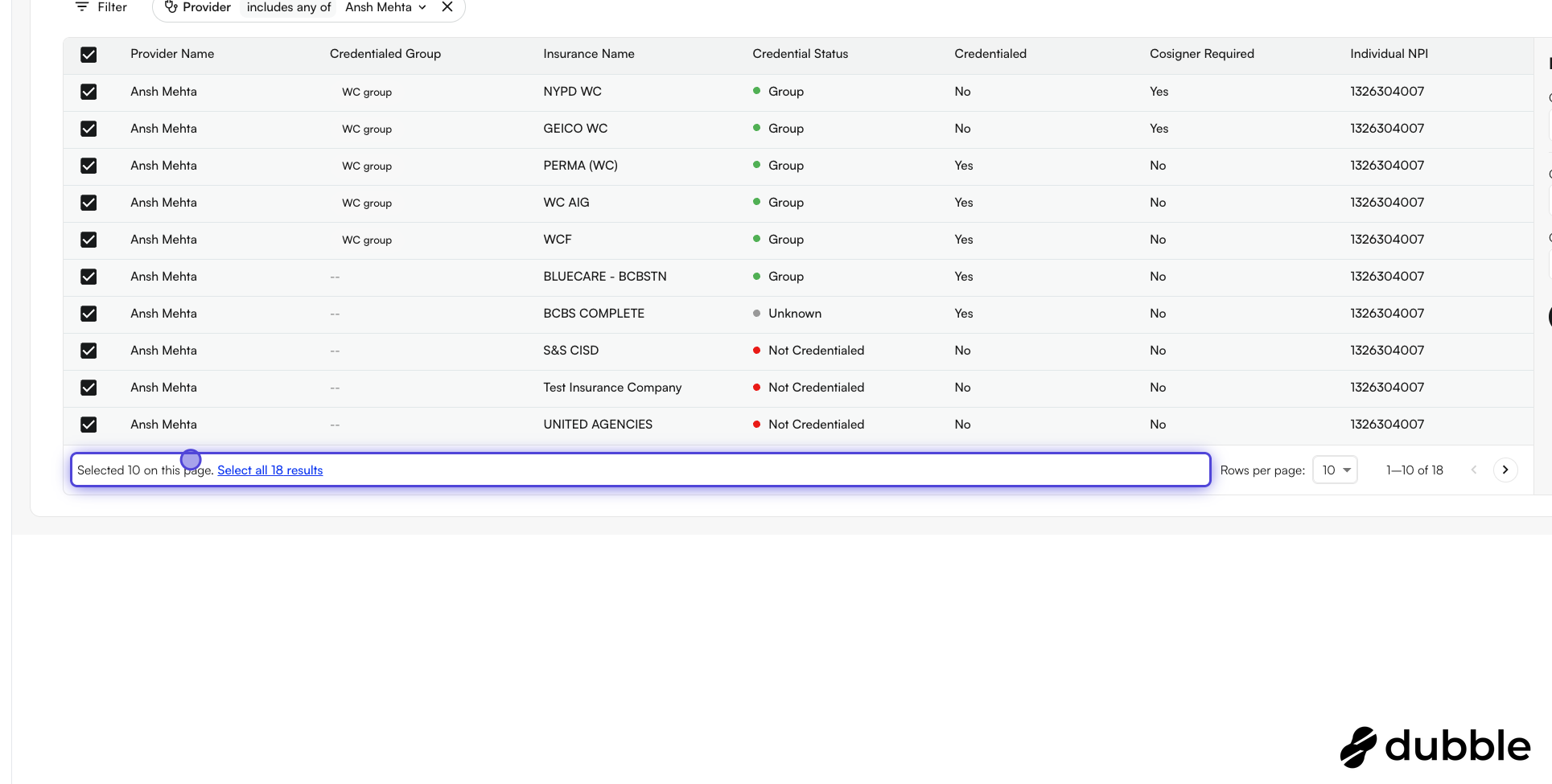
- Select all rows. You can see the message Selected 10 on this page . This will only make edits to the 10 selected rows.
- Click on Select all 18 results to select all the rows in the filter. Now we have selected all 18 rows.
- Make the edits accordingly. Click on Update to reflect your changes
Credentialing Group
Credentialing group allows you to bundle multiple insurance companies under one group, so when you get credentialed for a group, you can apply the same configuration.Important Notes:
- An Insurance company can be part of multiple credentialing groups.
- Groups are mutually exclusive with individual insurance selection in the Add Credential modal
- You can select multiple groups when adding credentials to credential a provider with all insurances across those groups
Creating Credentialing Groups
- Navigate to Provider Credentialing page (https://insights.athelas.com/provider-credentialing)
-
Click the ”+ Credential Group” split button in the top right

-
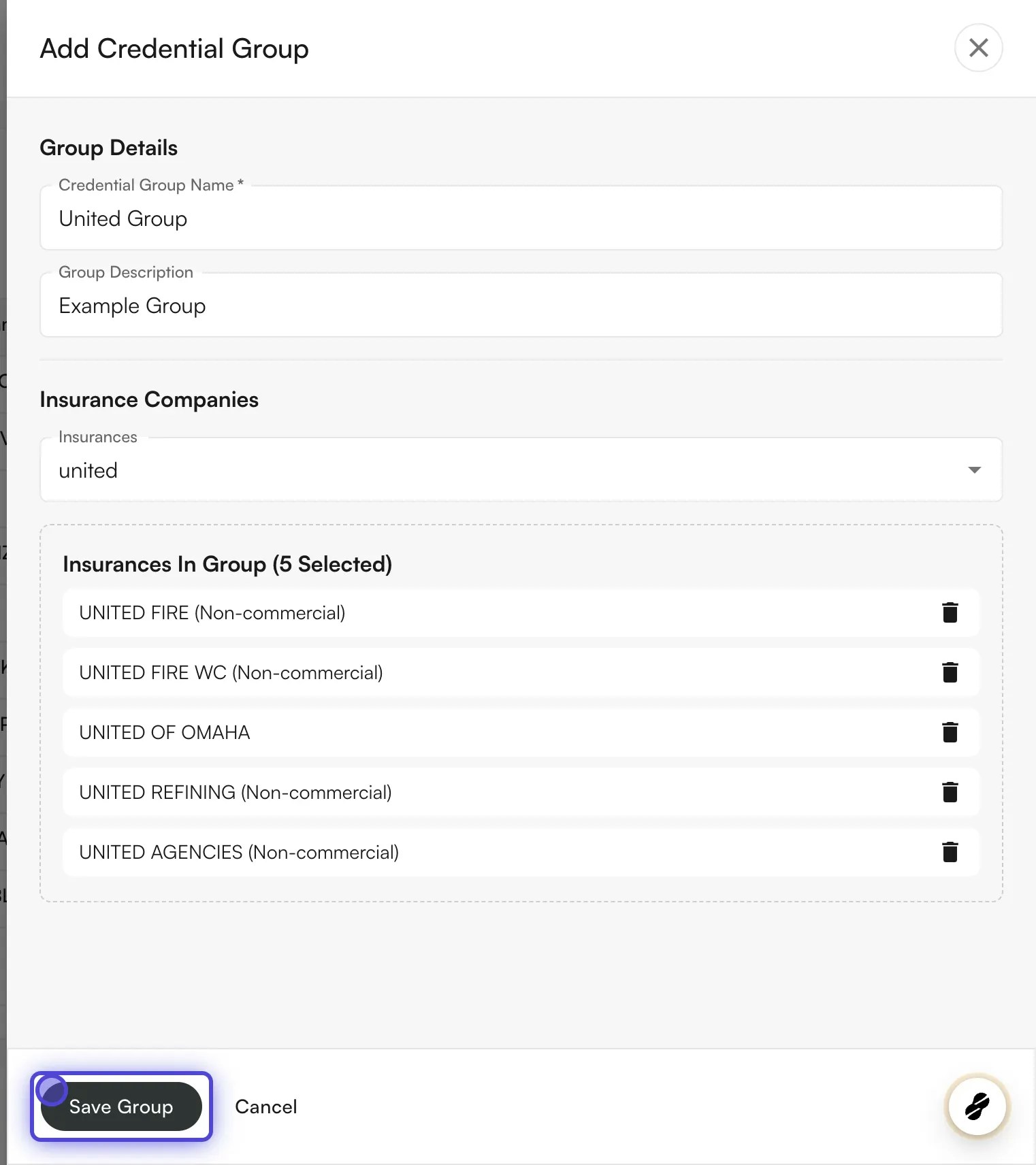
Fill out the group details:
- Enter a group name (e.g., “Optum Group”, “Medicaid Plans”)
- Add an optional description
- Select insurance companies to include in the group
-
Click “Save Group” to create the group
Editing Credentialing Groups
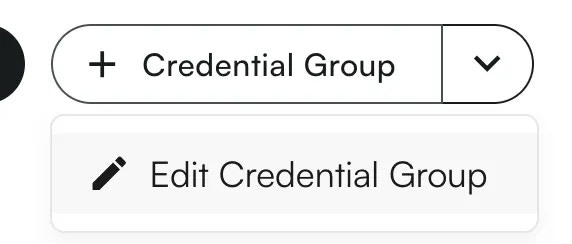
- Click the dropdown arrow on the “Credential Group” button
-
Select “Edit Credential Group”
- Choose the group you want to edit from the dropdown
- Modify the details as needed (name, description, insurance companies)
- Click “Save Group” to update, or “Delete Group” to remove it
Adding Credentials Using Groups
- Click “Add Credentialing” to open the credential modal
- Select a provider
- Choose your credentialing approach:
- Individual: Select a specific insurance company, OR
- Group: Select one or more credentialing groups
- Set credential details (type, status, cosigner requirements)
- Click “Confirm” - the system will automatically create individual credentials for each insurance in the selected groups
Viewing Group Information
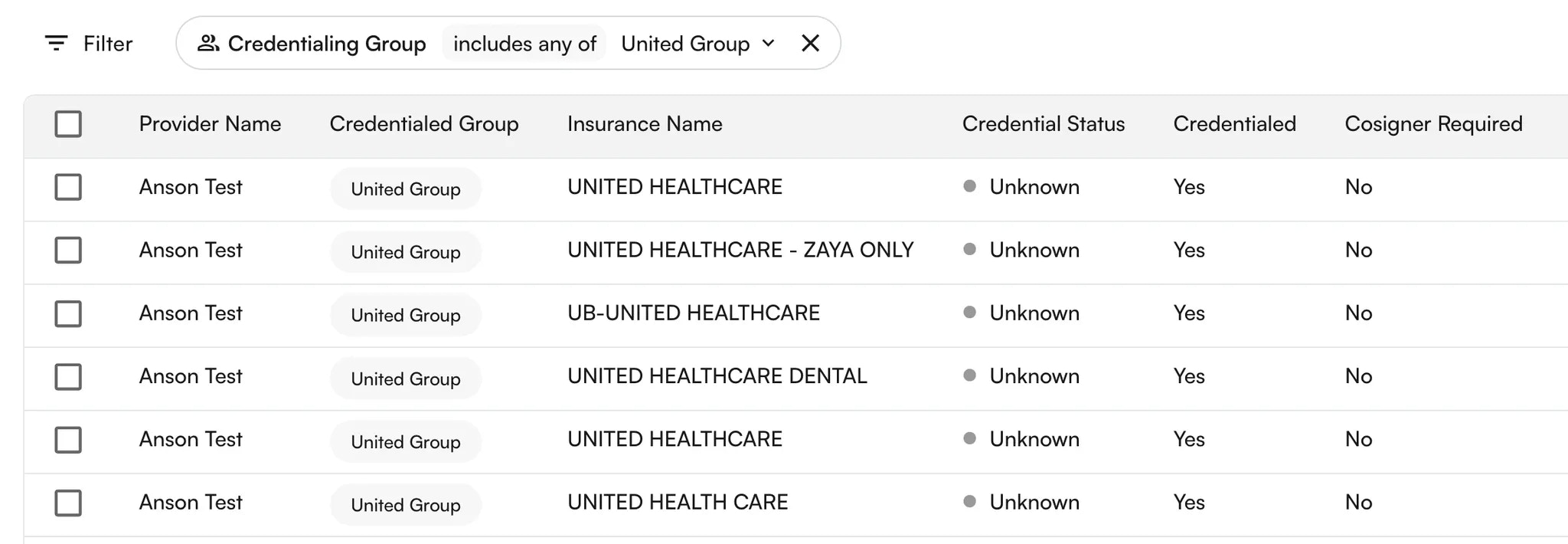
- Table Column: The “Credentialed Group” column shows which groups each provider belongs to
-
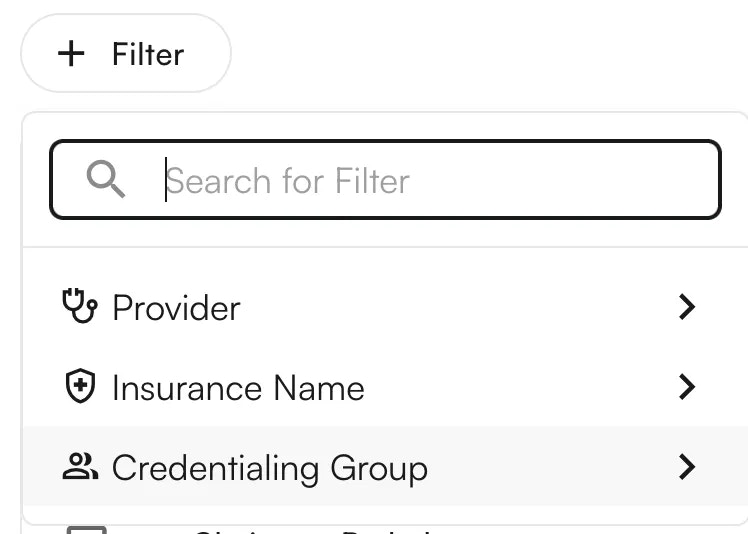
Filtering: Use the new “Credentialing Group” filter to view only providers who qualify for specific groups
-
Group Qualification: Providers only appear in a group if they have credentials for ALL insurance companies in that group
Deleting a credentialing group
You can also delete a credentialing group.Steps:
- Click on the credentialing group → down arrow icon →
Edit Credentialing group - Select the group to be edited.
- On the bottom of the drawer, you can see the
Delete credentialing group. - A confirmation modal appears. On click of
Delete Group, the credentialing group would be Permanently deleted!
Using credentialing group as filters
- Click the
+ Filterbutton above the table. This will show various filters. SelectCredentialing Group - You can search for various groups.
- Click on each row to select/deselect the credentialing group.
- On click, the table would load the filtered rows.
Using credentialing groups to add credentials
- Click on
+ Add Credentialingbutton - Select the provider name from the list of providers from the site.
- Select the credentialing group from the existing list of credentialing groups.
- Select the credentialing type. Based on the credentialing type, you would get the options to modify
CredentialedandCosigner required. - Click on
Submit. - The provider credentialing entries for provider + insurance companies under the credentialing group would be created.