

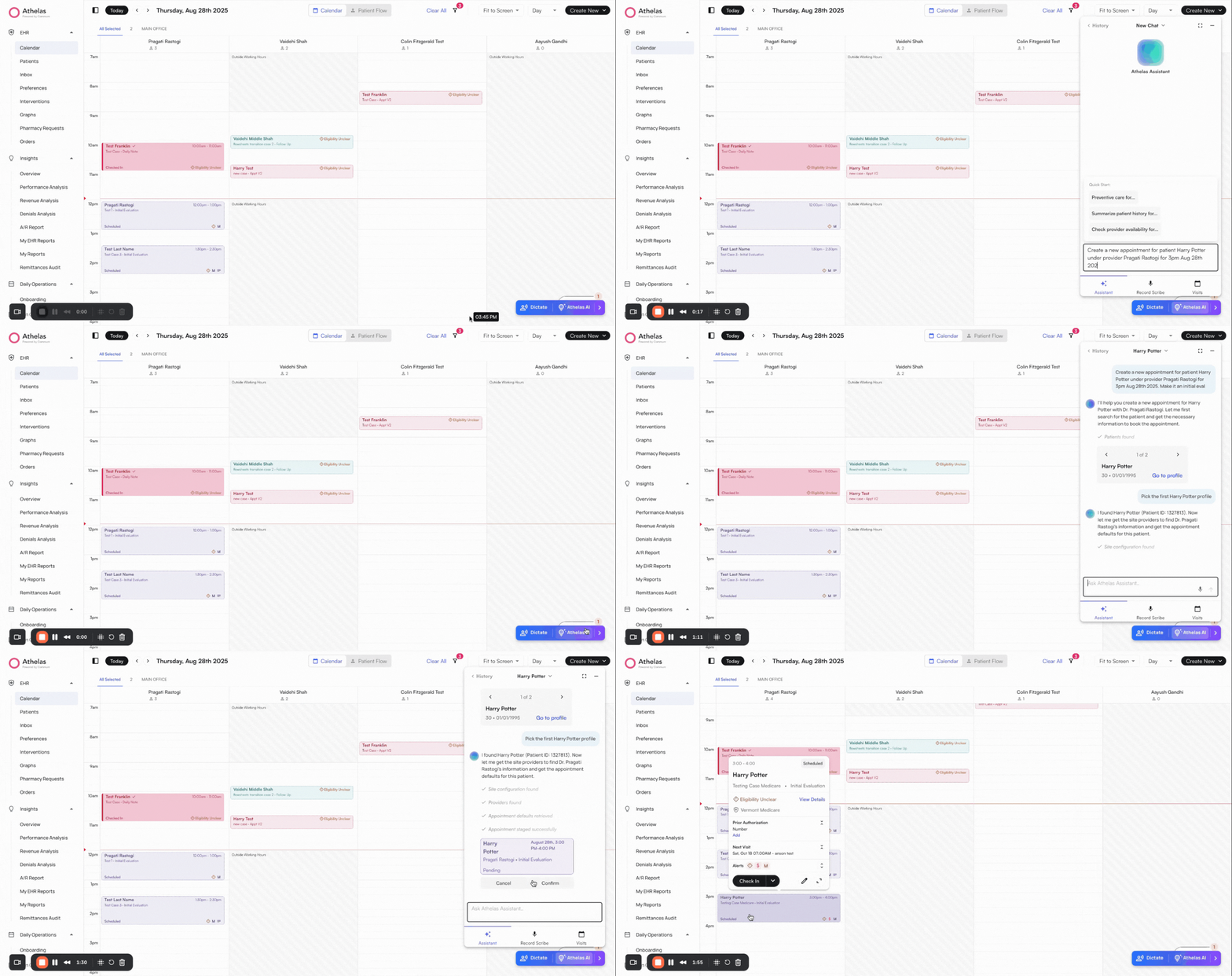
Use AI to create an appointment
✨Smart Tip: Ask Athelas AI to create an appointment for you. Specify the patient name, provider name, date & time of appointment and appointment type. You can also use Voice Mode.
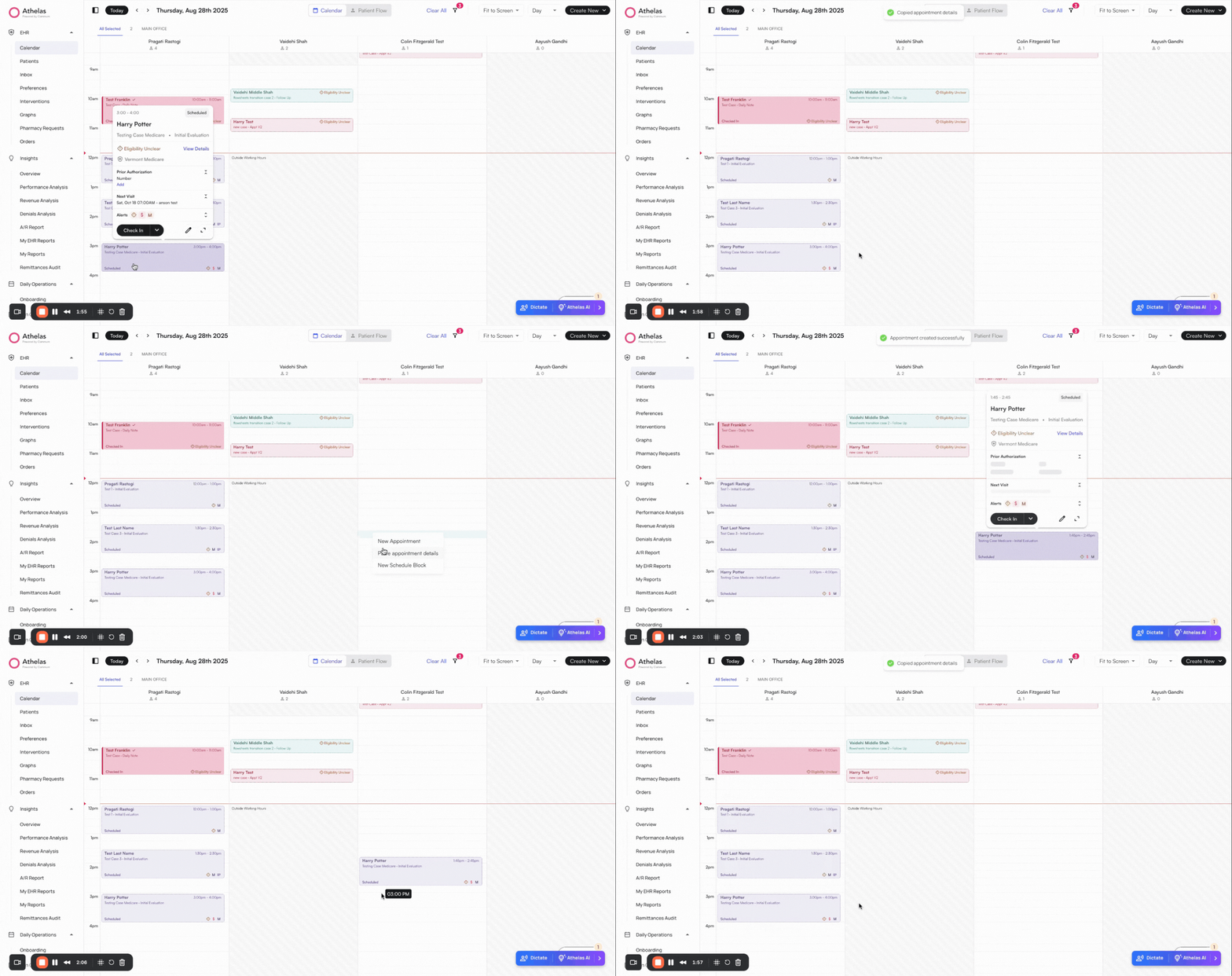
Copy paste an existing appointment
- Right click an appointment → click on Copy appointment.
- Click a new time slot → select Paste appointment details
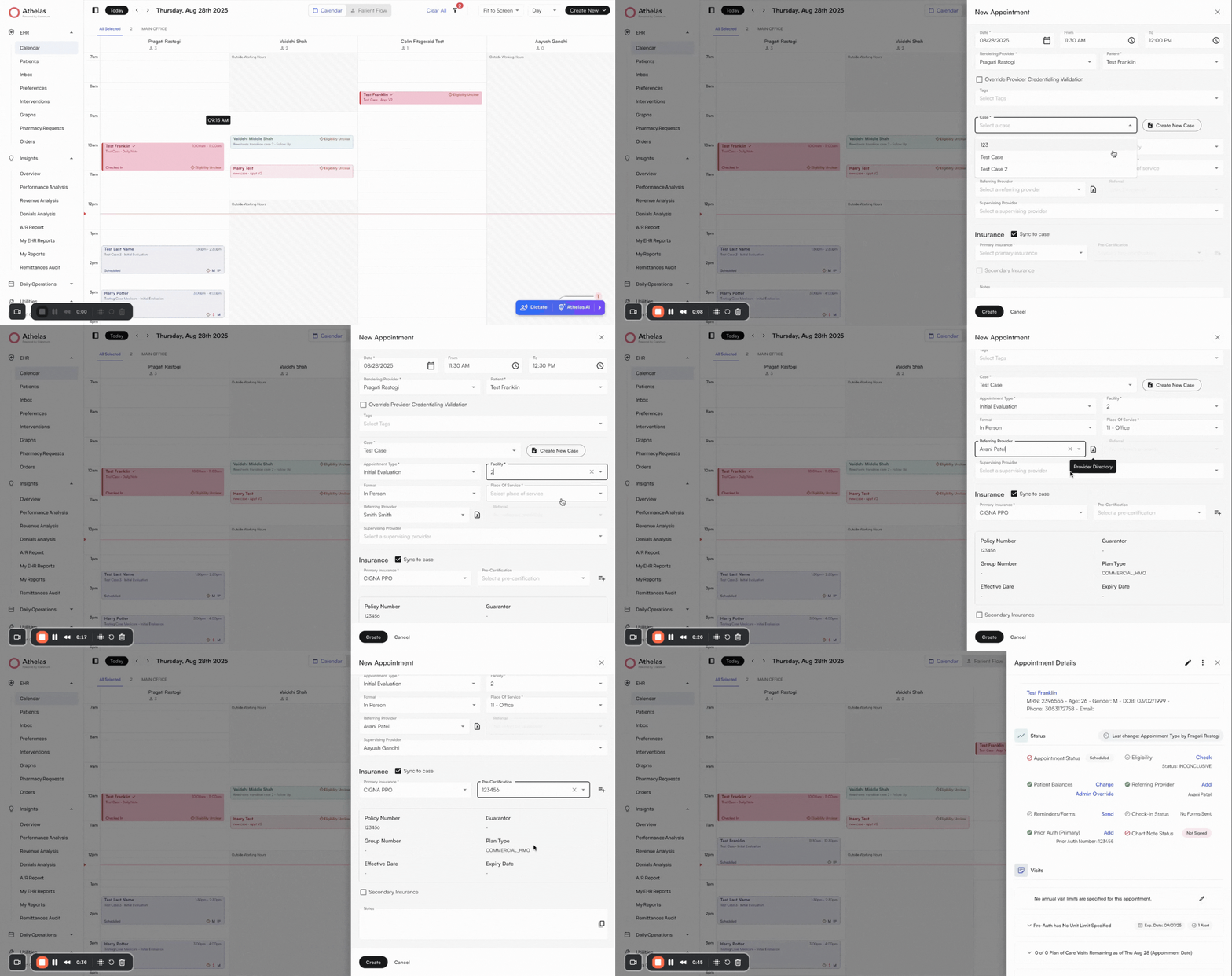
Create a new appointment (single)
Open new appointment window
Option 1: Click on a time slot on the calendar → Select New AppointmentOption 2: Click on the Create New button in the top-right corner of the page → Select New Appointment.Option 3: Go to Patient Profile → Click on theNew Appointment button in the top-right cornerA side panel will open to enter the following details: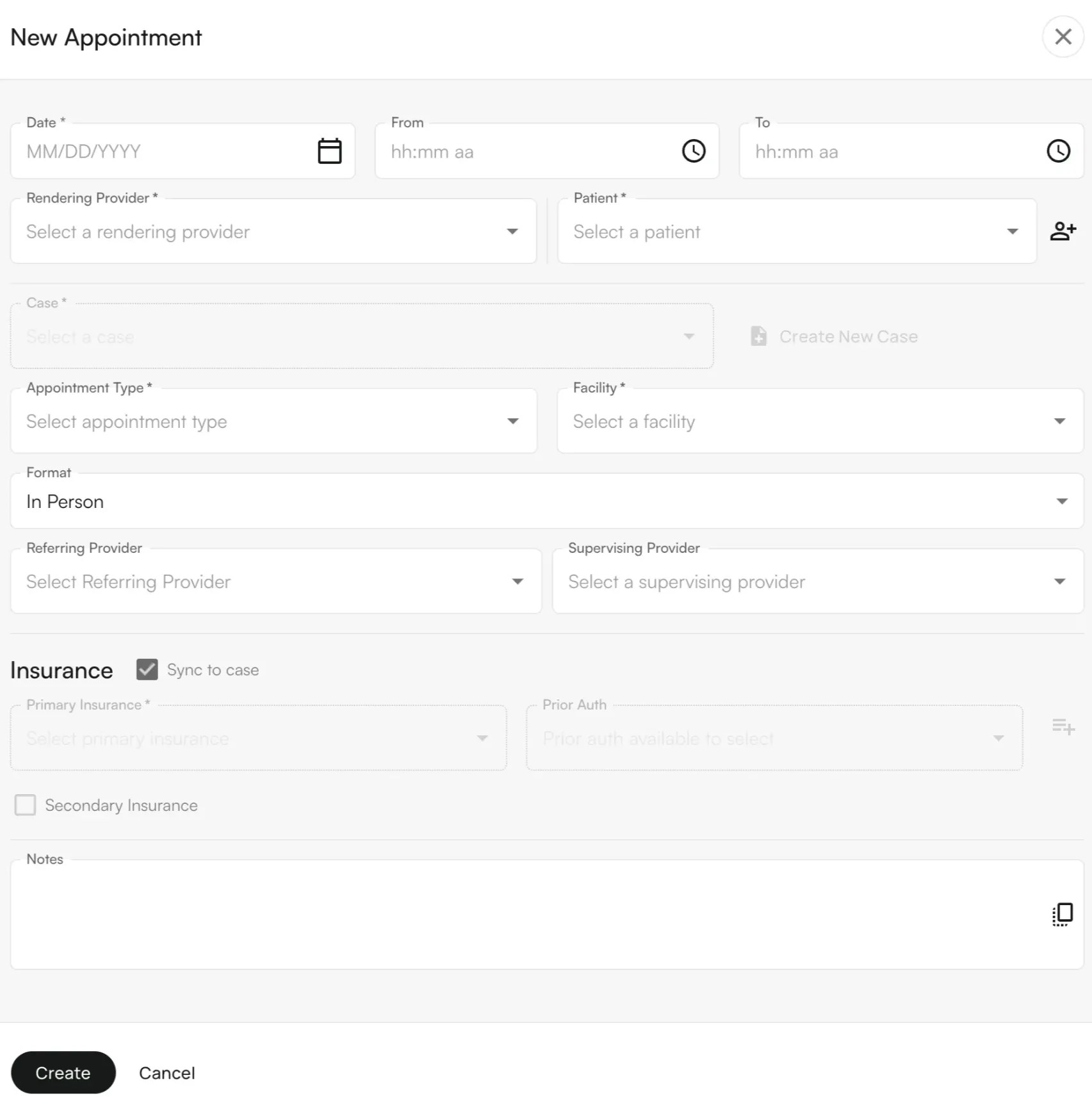
- Appointment Date, Start and End Time (will auto-populate if you use Option 1)
- Rendering Provider (will auto-populate if you use Option 1)
- Patient
- Case
- Appointment Type
- Facility
- Format (In-person or Virtual)
- Referring Provider
- Supervising Provider
- Insurance (with Priority & Prior Authorization)
-
Appointment Notes
Creating a New Patient
If you need to create a new patient:
- Click on create new appointment →Click on the Create New Patient at the bottom of the Select Patient dropdown OR go to the Patients Tab → Create New Patient.
- Fill out the following details:
- General patient demographics
- Contact Information
- Insurance Information
- Intake form settings
- Home Address [Optional]
- Emergency Contact Information [Optional]
- You can then view the patients details within the Patient Tab as needed.
Add Patient Notes
You can add patient notes in three ways:
Add a New Case
To add a new case, first select a patient, then click Create New Case button. A side panel will appear where you can enter: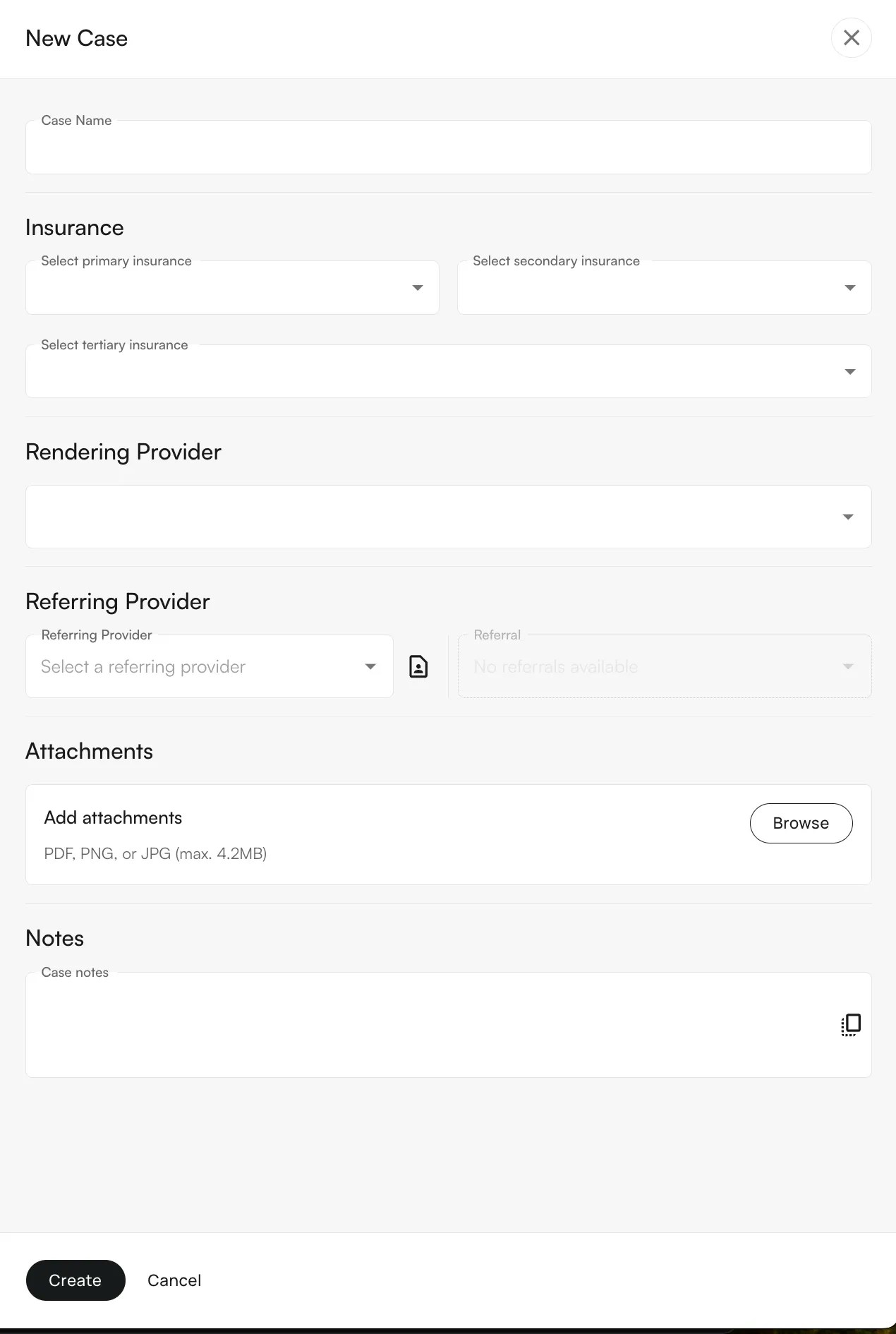
- Case name and notes
- Insurance priority (auto-populated from the case, but can be overridden)
- Rendering/Referring Provider and Referral details
-
Attachments
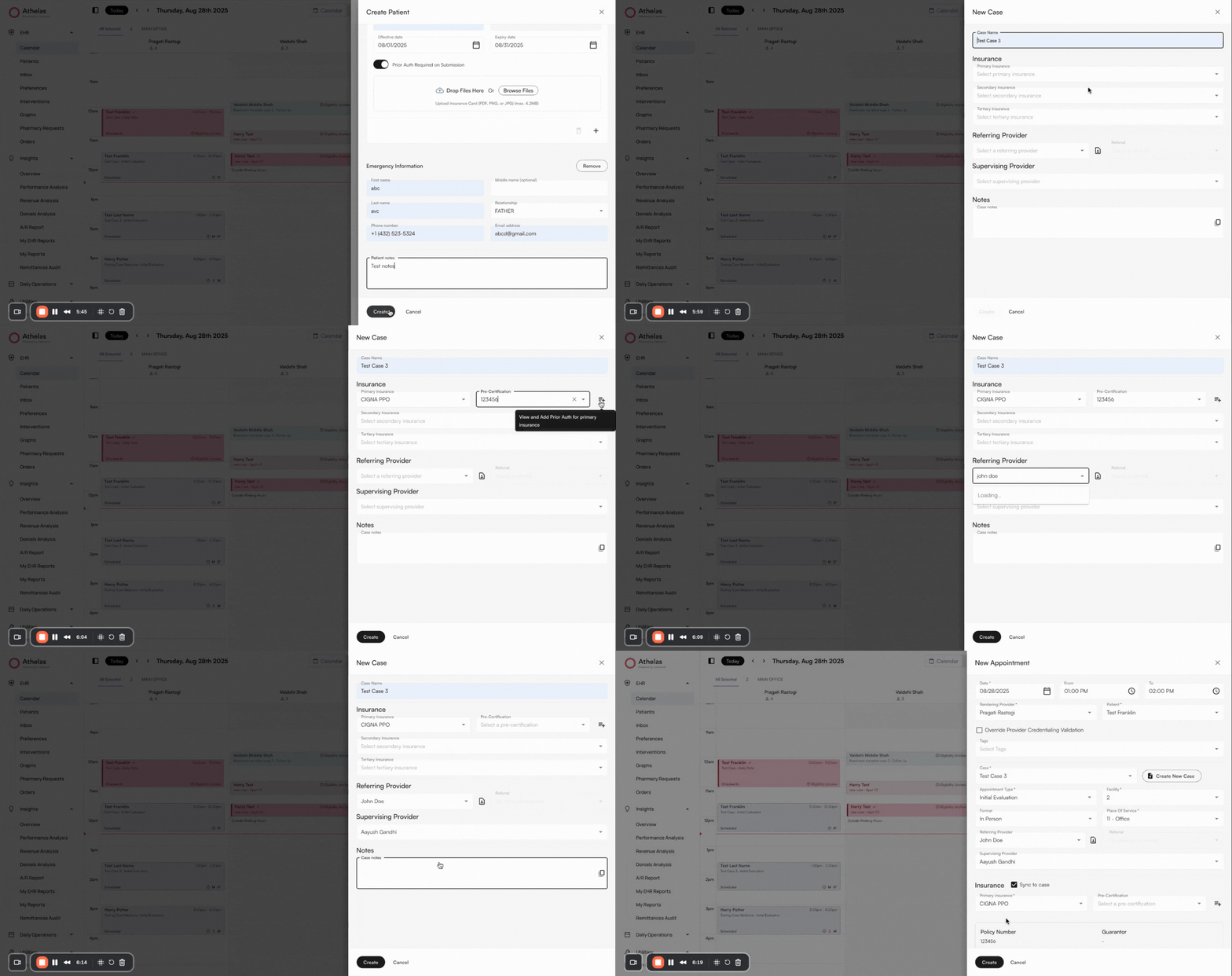
Update Referring Provider
When adding a referring provider, you can search our Provider Directory (icon to the right of the search bar). It is sourced from the NPI Registry.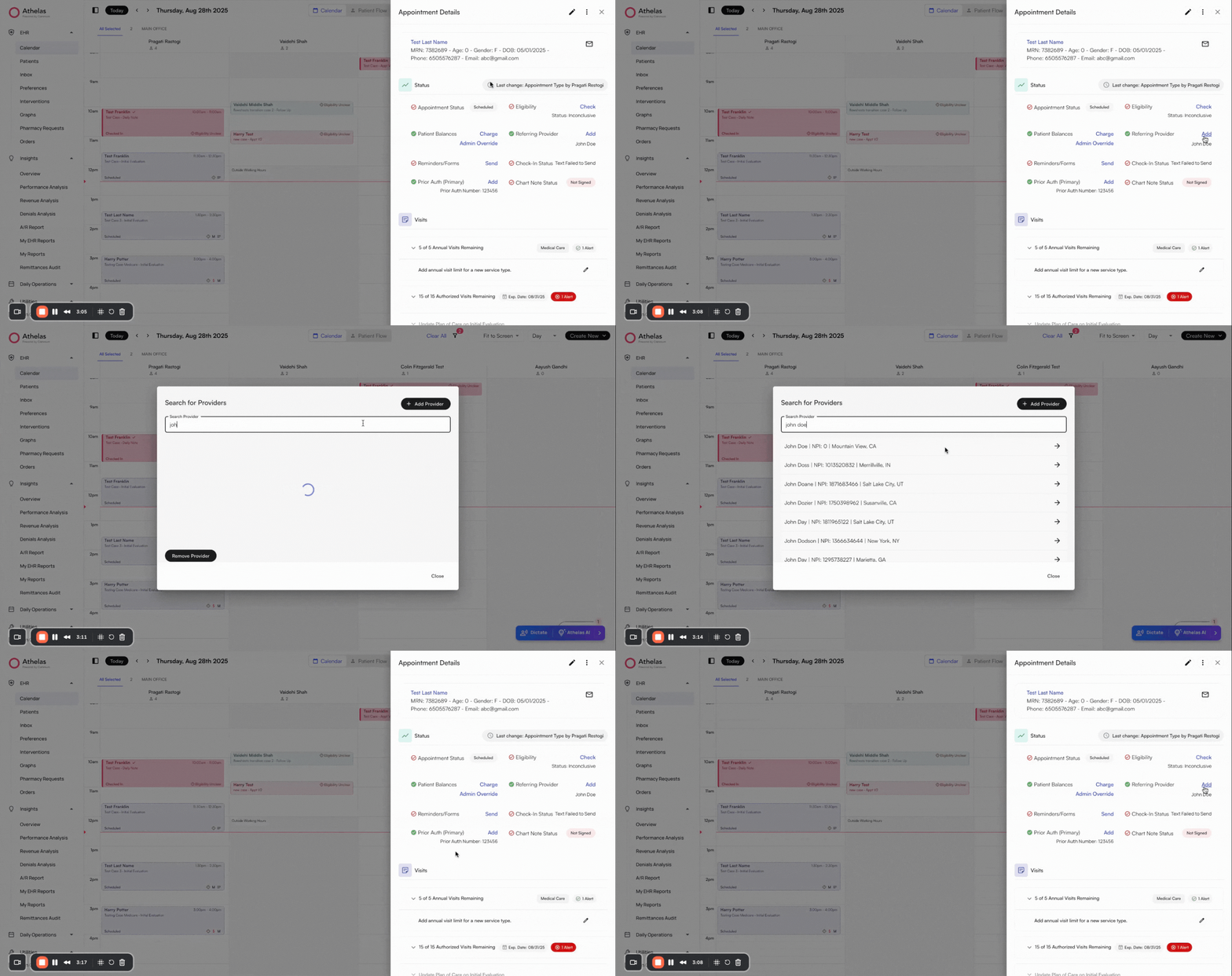
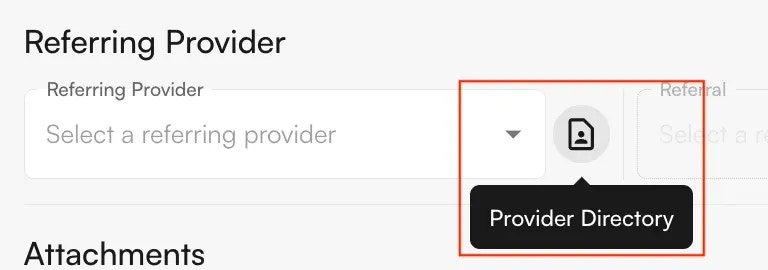
- Add a provider by NPI or name
- Edit provider details (fax, phone, address) via the pencil icon
- Have referrals auto-populate if “Direct Access” is chosen
Add Prior Authorization
To add a new prior authorization, click the + icon next to the Prior Authorization field.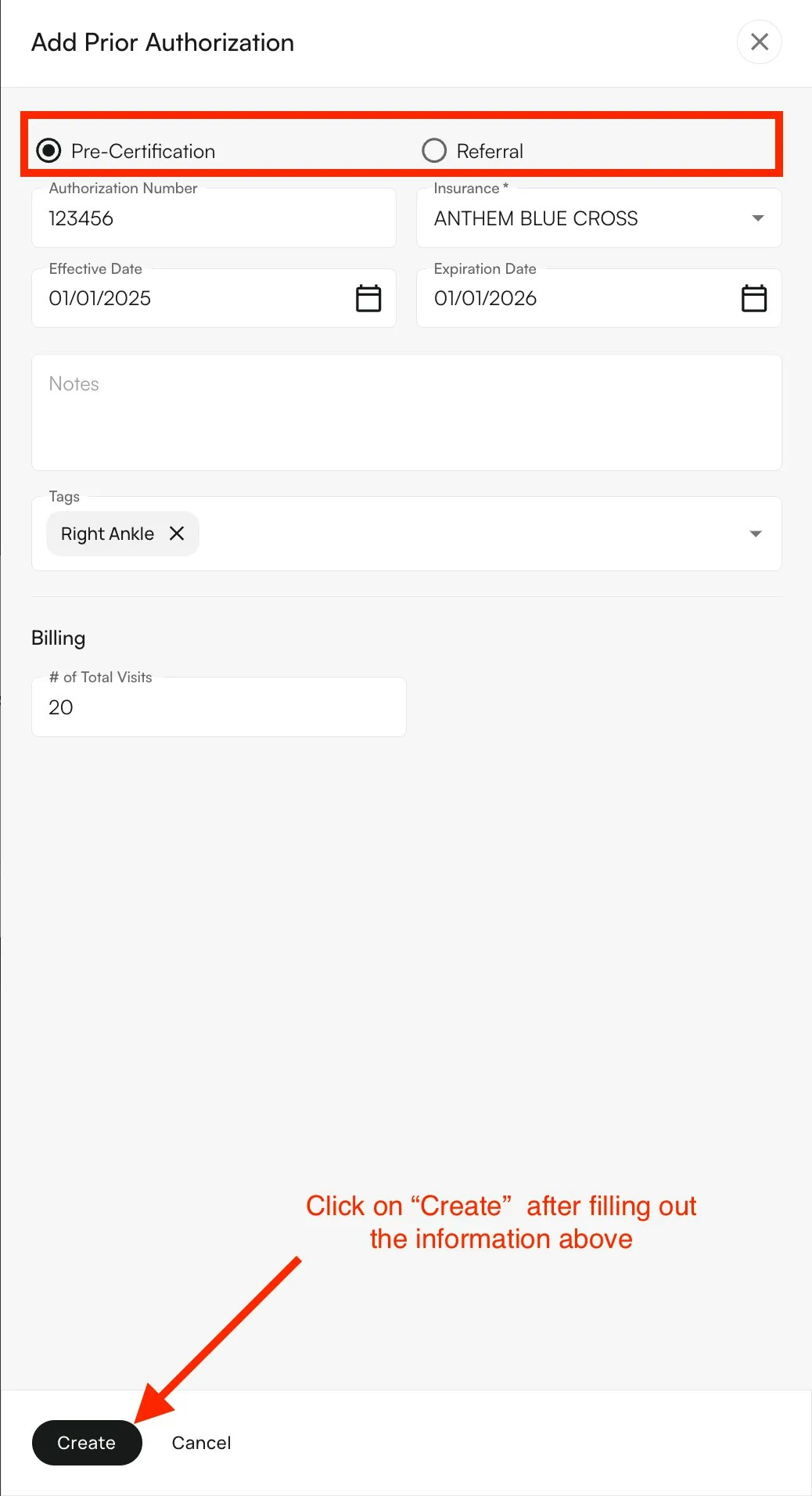
- In the pop-up window, click + Create.
- Fill in the authorization type (Pre-Certification or Referral), number, effective/expiration dates, insurance, notes, and tags.
- Click Create.
Change Insurance Priority
Insurance priority will be auto-populated based off what was indicated in the case.To change insurance priority, ensure the Secondary and Tertiary checkboxes are selected. Then, use the dropdown to assign insurances to each priority level.Note: You cannot create a new insurance from here—you must select one already on the patient’s record.
Create new appointment (bulk)
- Use Create New → Bulk Create Appointments or click directly on the calendar.
- Choose the provider, title, time/date, and recurrence.
- If your practice policy allows you can also note credentialing exceptions during scheduling.
FAQ: Updating a case after the appointment is completed
FAQ: Updating a case after the appointment is completed
We do not support updating a case for a completed appointment. Sites must make sure the case is linked correctly before finalizing the chart note in Air.If a site encounters this issue:
- A completed appointment cannot be archived. Every completed appointment (which is typically intended to bill) will always have an encounter/claim.
- The site should schedule a new appointment on the same day with the same provider, linked to the correct case.
- Import the PDF of the incorrect case into this new appointment.
- Mark this new appointment as “for documentation only” so no duplicate encounters/claims are generated.
- Once the document is imported, they can apply Scribe to the chart note.
- Going forward, they will be able to carry forward information from the correct case into future appointments for that case.