

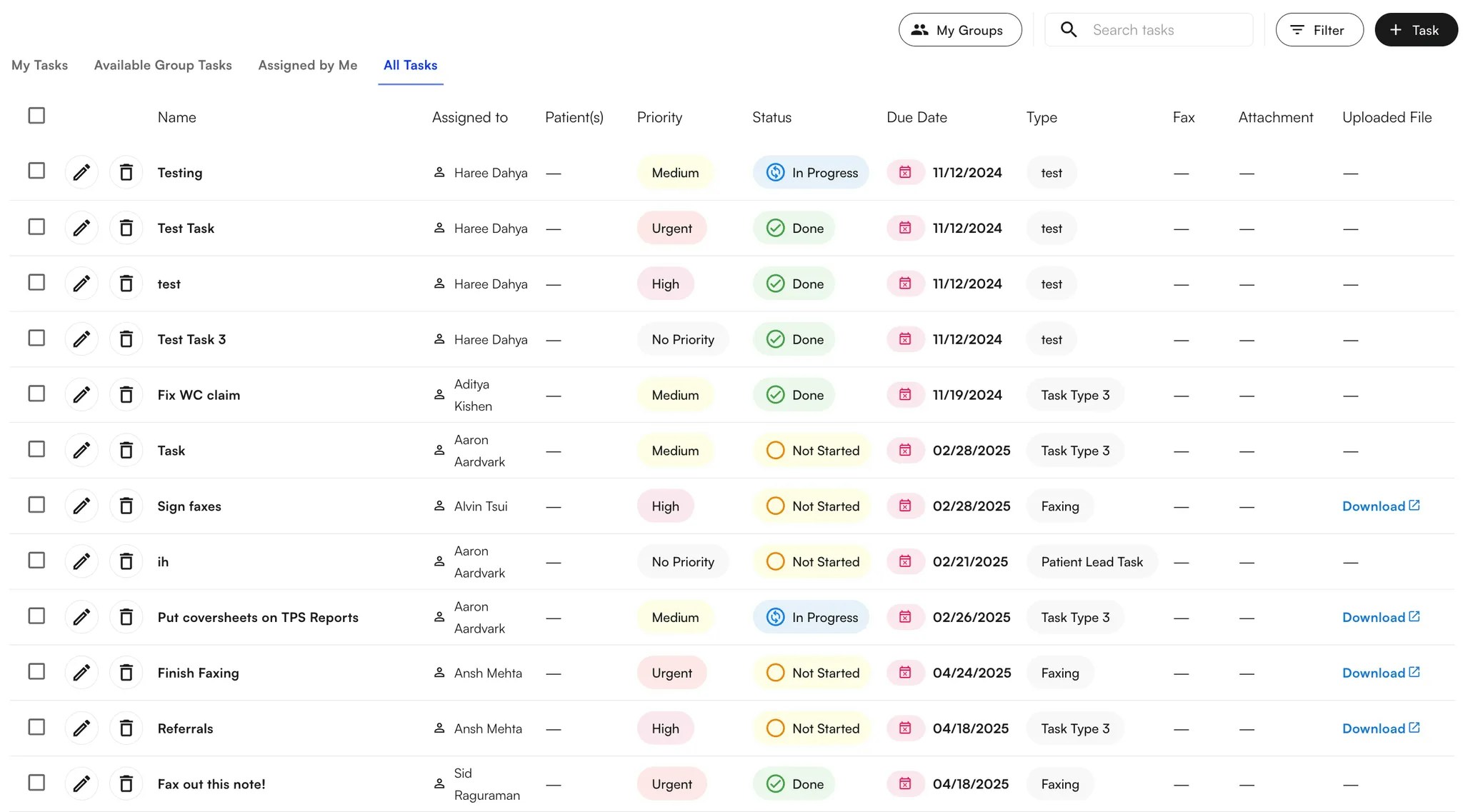
- My Tasks – tasks assigned to you
- Available Group Tasks - tasks assigned to groups you are a member of
- Assigned by Me – tasks you have assigned to others
- All Tasks - tasks assigned across the organization
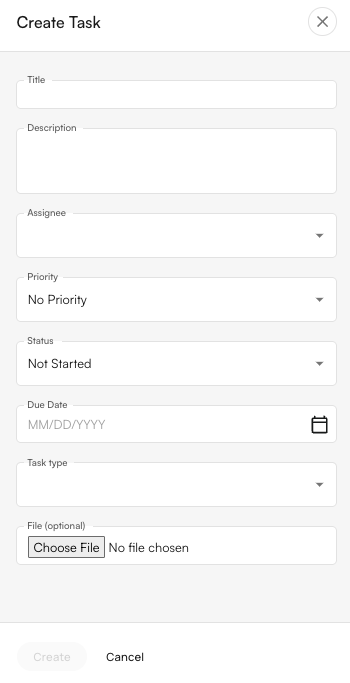
Create a New Task
- Click + Task on the top right of the page.
- In the Create Task popup, enter a clear title and description.
- Under Assignee, start typing a colleague’s name. The menu will auto-populate with names of staff who have Insights accounts, click to select. Note: You can assign a task to multiple patients
- Set the priority level, status, and due date (if applicable).
-
Choose a task type:
- Select from existing options, or
- Create a new task type by typing in the box and clicking + Create.
- Optionally, upload a file related to the task (note: larger files may take longer to upload).
- Once all fields are complete, click Create.
Update Tasks
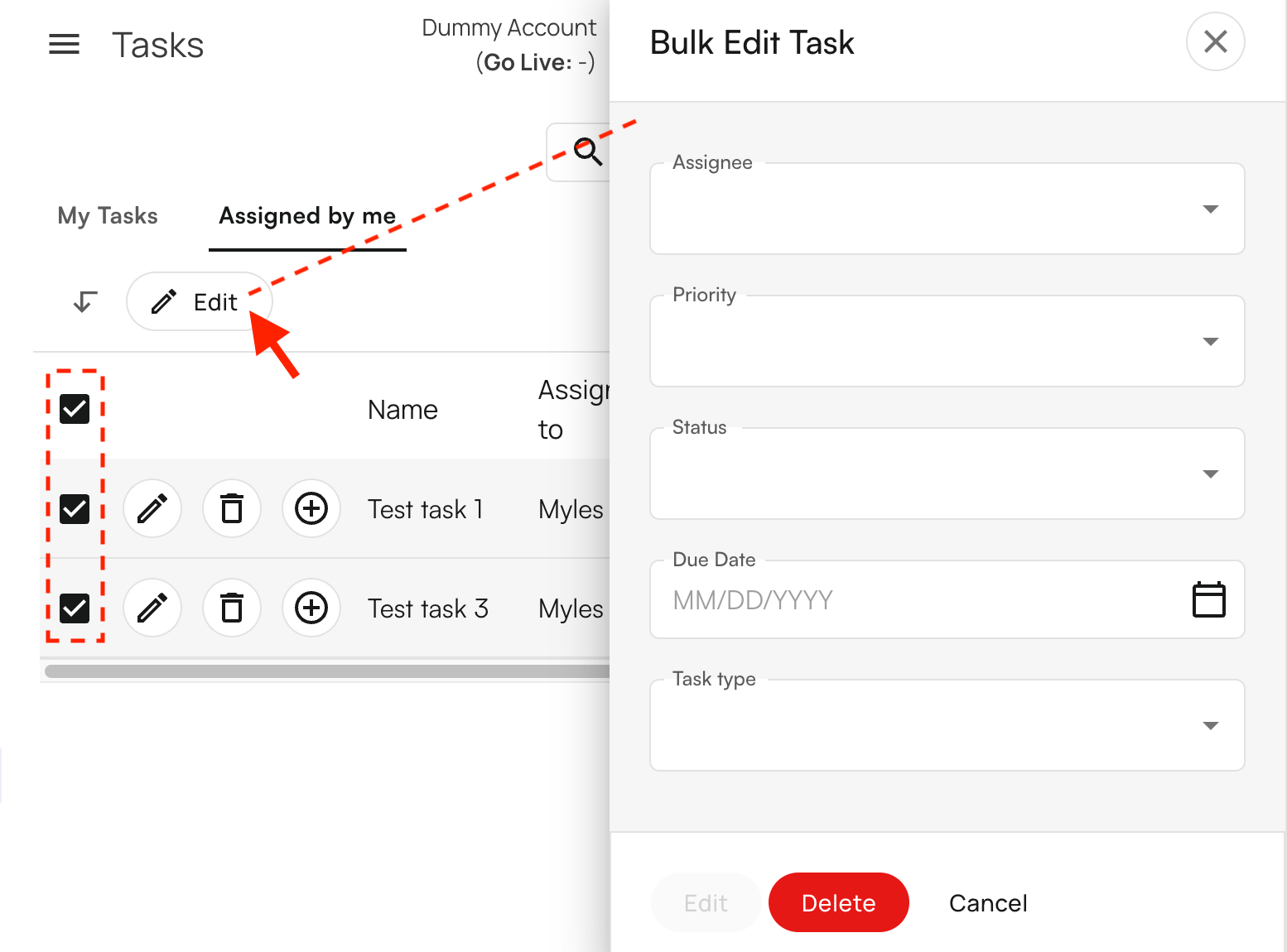
Update Task Status: You can edit, delete, or update the status of a task by clicking the corresponding icons.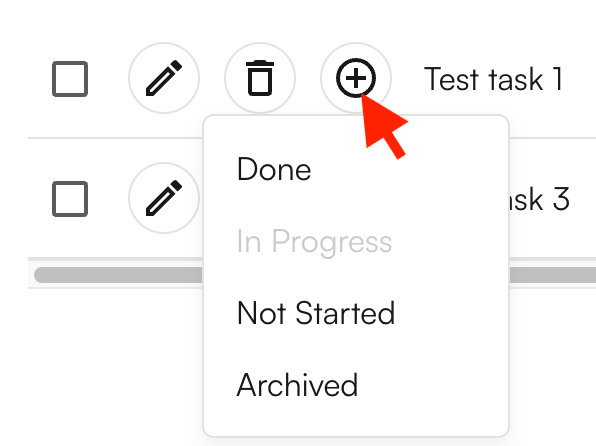
Assign Tasks to User Groups
Tasks can be assigned to 1 group OR 1 individual at any point of time. Once a task is self-assigned from a group, the task will be unassigned from the group and moved to your “My Tasks” tab.**View Group Details: **View your groups, search members, browse membership lists by clicking on My Groups.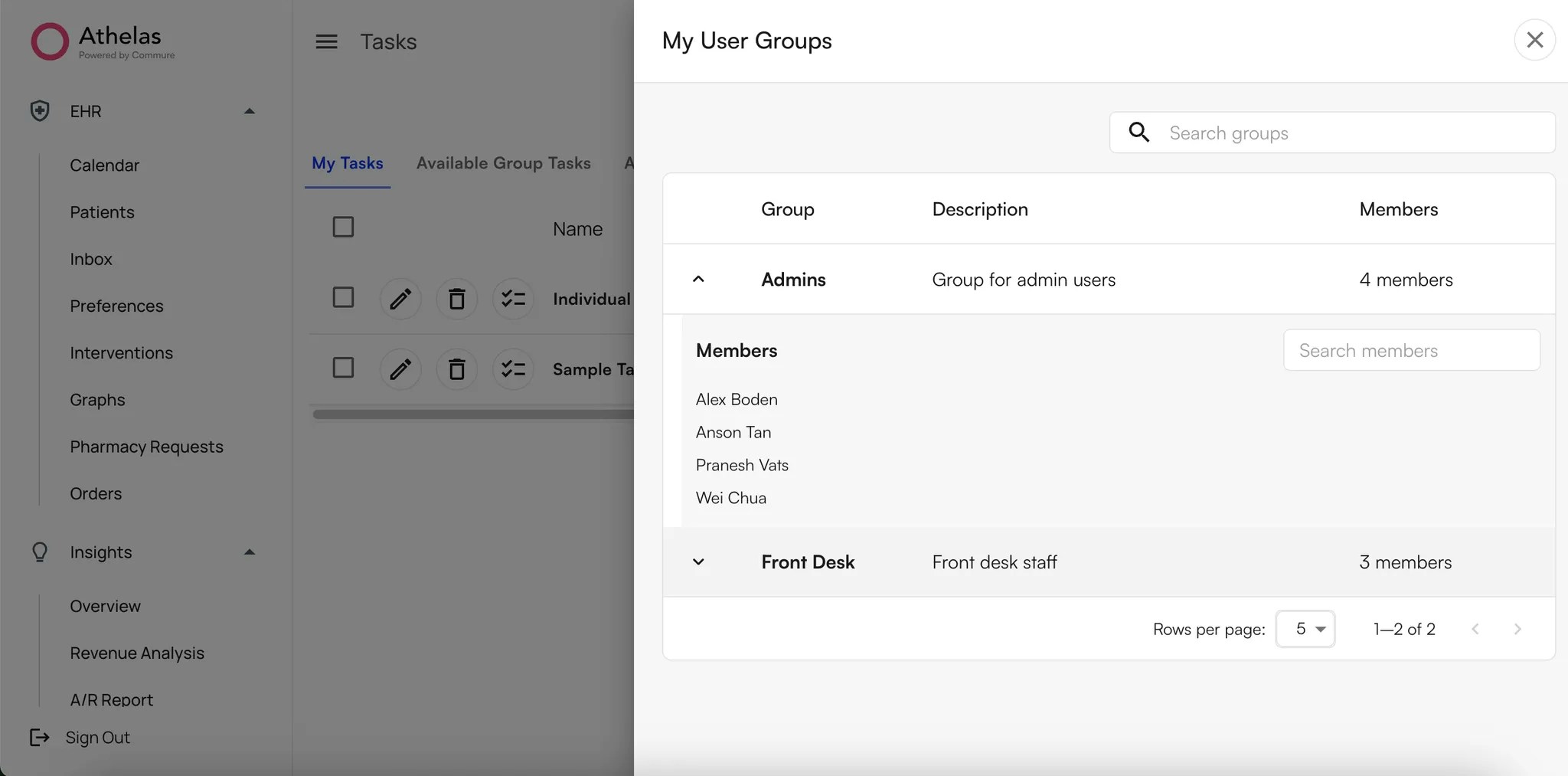
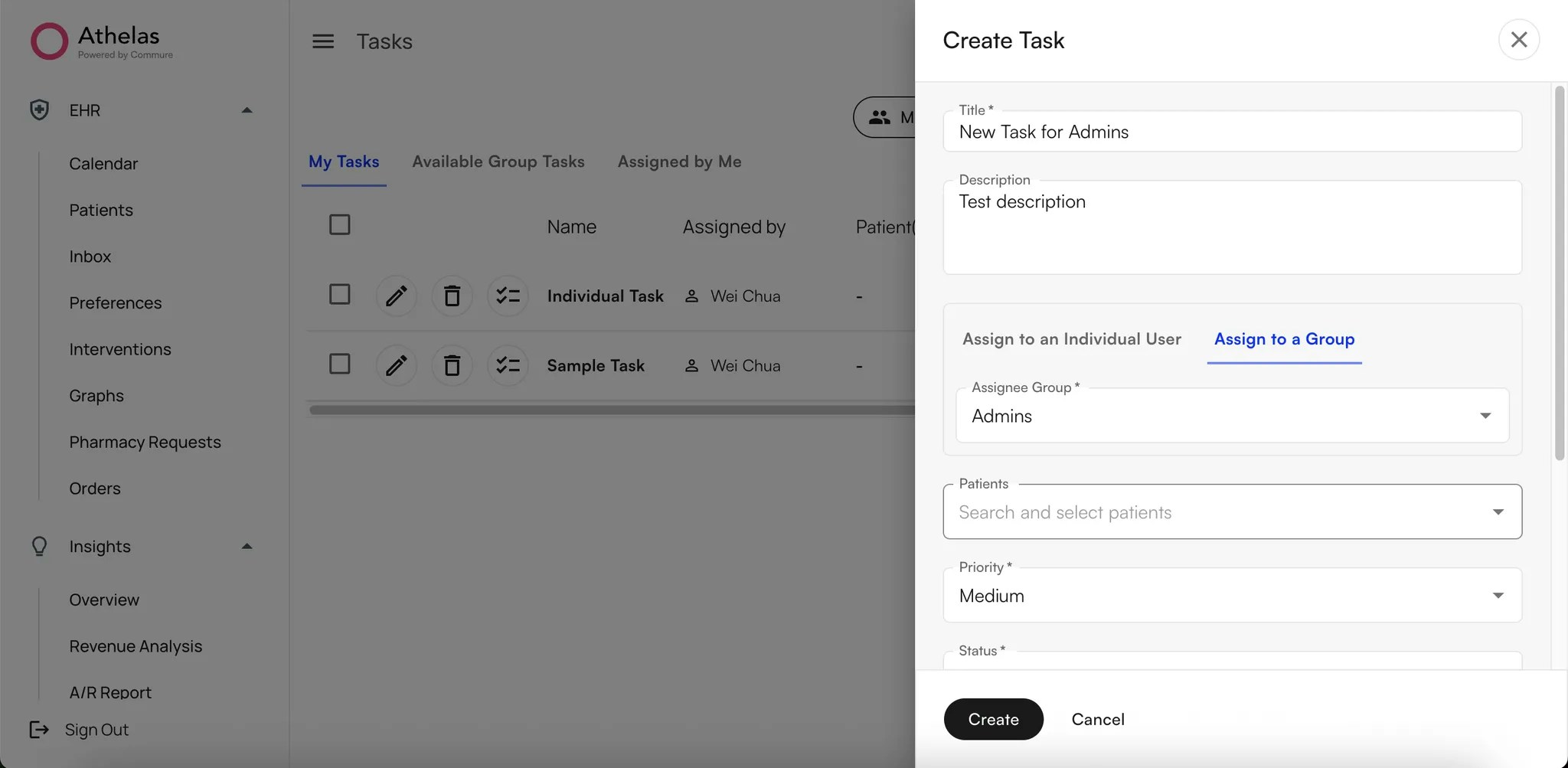
- Click + Task (top right).
- In the drawer:
- Add Title and optional Description.
- Choose Assign to a Group tab → pick a group from the dropdown.
- Complete other required fields (priority, due date, etc.).
- Click Create.
- Find your task in Assigned by Me tab. You can edit or delete the task here.
- Edit/Delete group tasks if you have permissions.
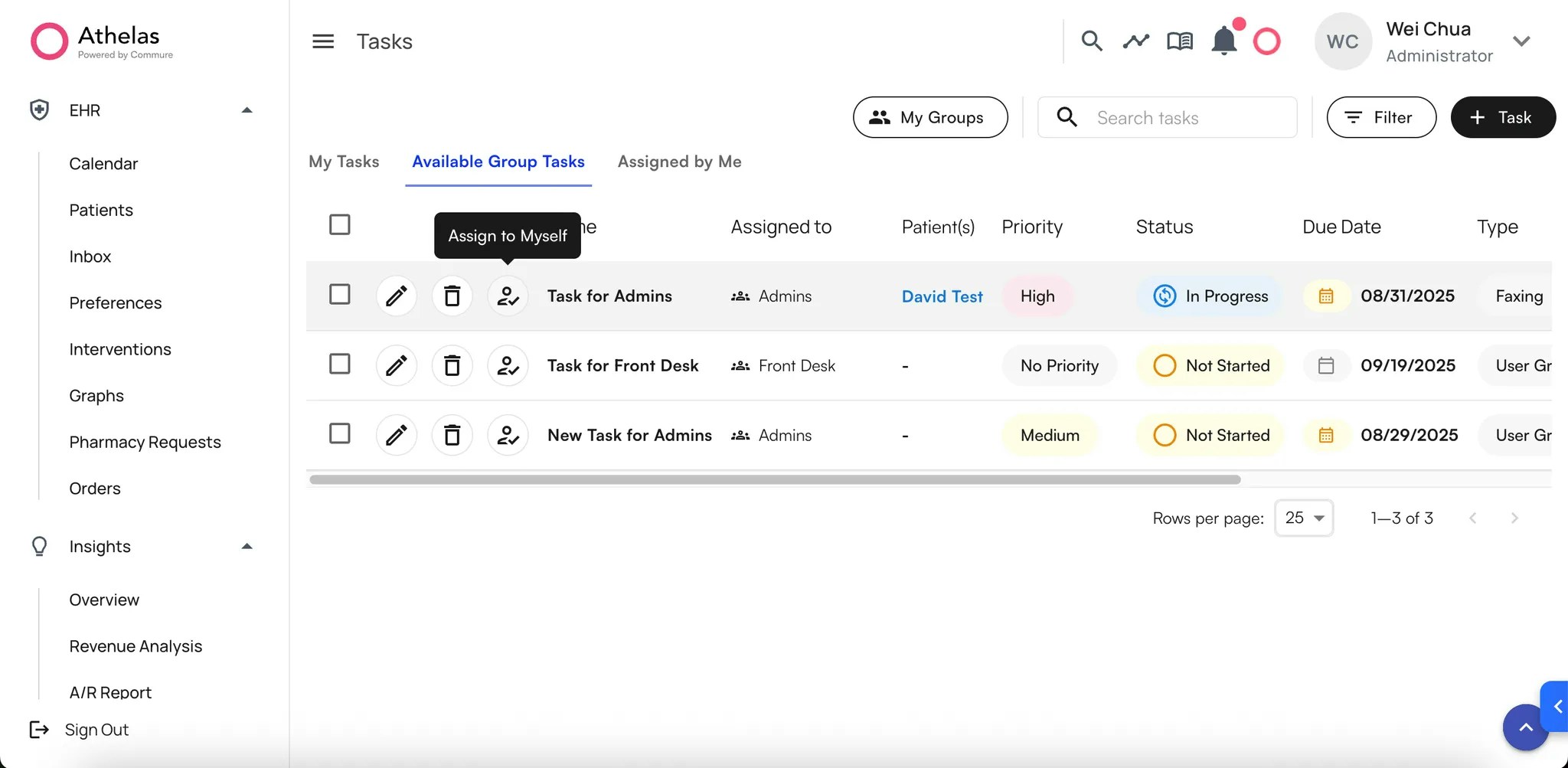
- Self-assign → click Assign to Me.
-
Confirm → task moves from Group → My Tasks tab.
FAQ: I have assigned myself a group task, but I want to reassign this task to the group for another member to claim
FAQ: I have assigned myself a group task, but I want to reassign this task to the group for another member to claim
In your “My Tasks” tab, search or filter for the corresponding task and select the pencil icon to bring up the “Edit Task” drawer.Click on the “Assign to a Group” tab, and select a group that you want to assign to.Save your changes, and the task will be reassigned to the group that you have selected.
FAQ: Can I assign tasks to both a group and a user
FAQ: Can I assign tasks to both a group and a user
No, a task can only have one assignee at any point of time. This means that if the task is assigned to a group, it cannot be assigned to a user.Likewise, a task cannot be assigned to a group when it is assigned to a user. This helps to simplify task assignment and prevent duplicate efforts within your team.
Set-up User Groups
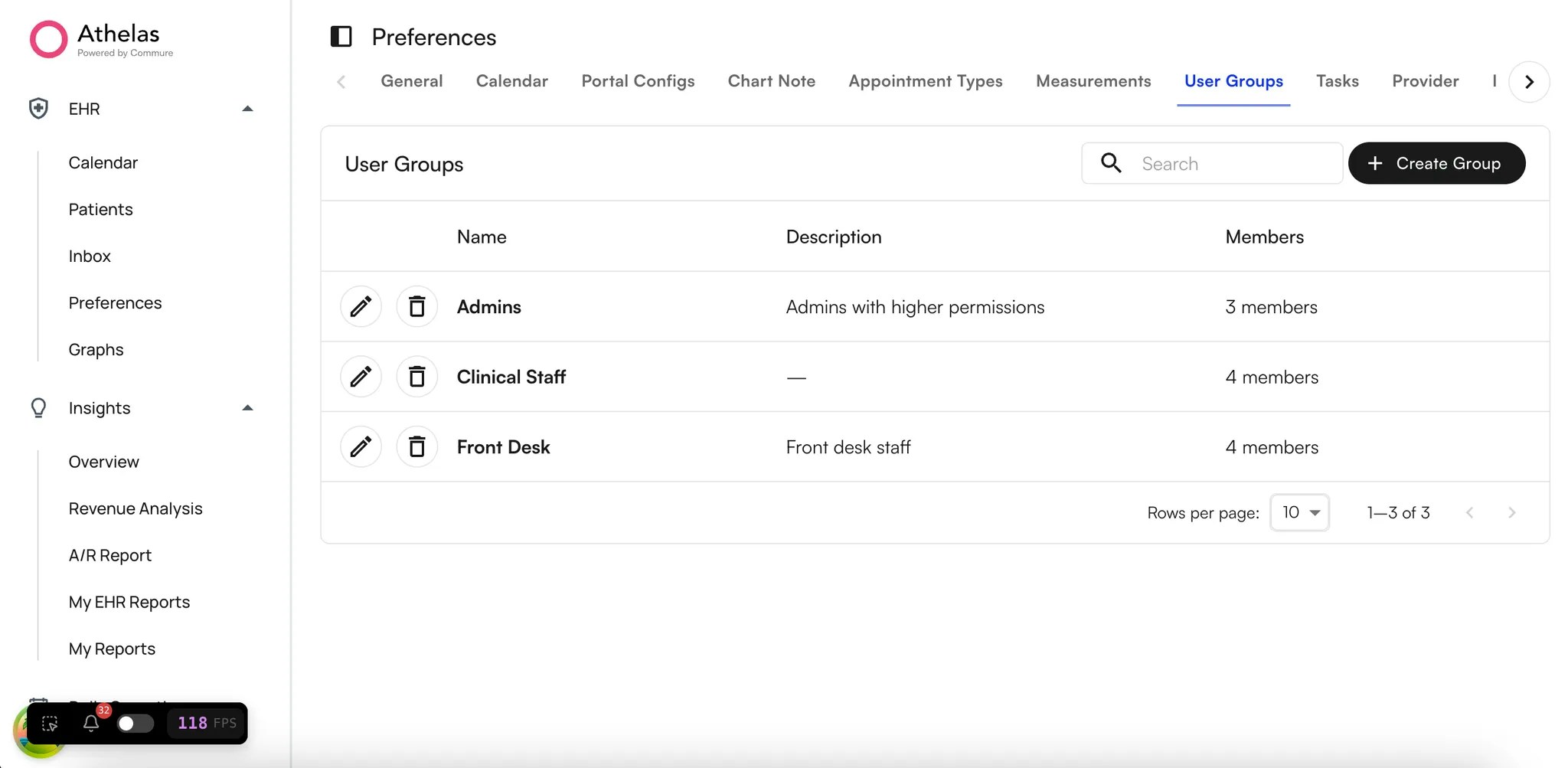
Go to Preferences → User Groups.
- Click Create Group (top right).
-
In the drawer:
- Enter Group Name (must be unique).
- Add an optional Description.
- Add Users (optional).
- Click Create.
-
After the groups are created you can search for them, edit group name, description or members, delete the group.
Create Tasks linked to patient Attachments
For a given attachment, you can create a task associated to it. The task created will be pre-filled with the attachment linked to it.Navigate to the Patient Attachments page > Each row in the attachments table has a Manage Tasks button on the right.The notifications next to the attachment will have one of the below icons:
- Incomplete task → Red icon
- Complete task → Green icon
-
No task attached → No icon

- Click Manage Tasks > New Task (bottom left)
- Fill in required fields:
- Task Title
- Assignee
- Priority
- Due date
- Task type
- The task will be automatically linked to the current attachment.
- Click Create to save.
- Once created you can view details, edit, delete or update the task status. Status options include: Not Started, In Progress, Done, or Archived.
FAQ: Can I link an attachment to an existing Task on the Task page
FAQ: Can I link an attachment to an existing Task on the Task page
You can create a new task linked to an attachment only from the patient’s attachment page. However, you can view and manage existing tasks linked to attachments from the Tasks page.
Create Tasks linked to Faxes
For a given incoming or outgoing fax, you can create a task associated to it. The task created will be pre-filled with the fax number linked to it.Navigate to the **Fax **page > Each row in the Fax table has a Manage Tasks button on the right.The notifications next to the attachment will have one of the below icons: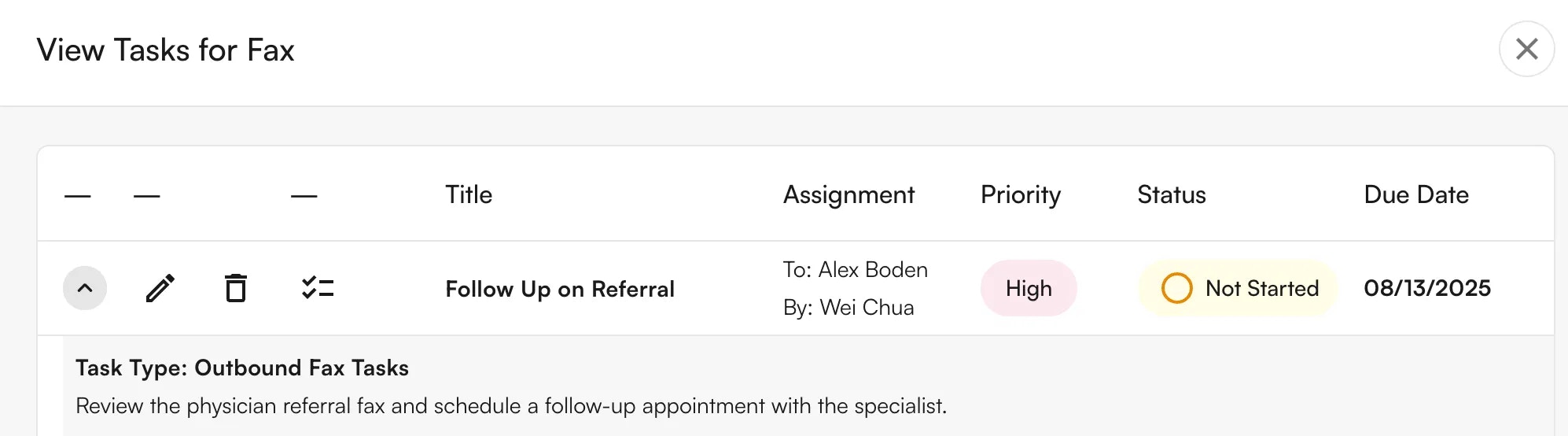
- Incomplete task → Red icon
- Complete task → Green icon
-
No task attached → No icon

- Click Manage Tasks > New Task (bottom left)
- Fill in required fields:
- Task Title
- Assignee
- Priority
- Due date
- Task type
- The task will be automatically linked to the current fax.
- Click Create to save.
- Once created you can view details, edit, delete or update the task status. Status options include: Not Started, In Progress, Done, or Archived.
FAQ: Can I link a Fax to an existing Task on the Task page
FAQ: Can I link a Fax to an existing Task on the Task page
You can create a new task linked to a Fax only from the Fax page. However, you can view and manage existing tasks linked to a Fax from the Tasks page.