
How to Refund a Payment
- Open the patient’s profile and go to the Transaction tab. Click the payment you want to refund.
- On the transaction details, click Refund.
- Choose the Refund Method, whether it’s a full or partial refund, the amount (if partial), and the reason.
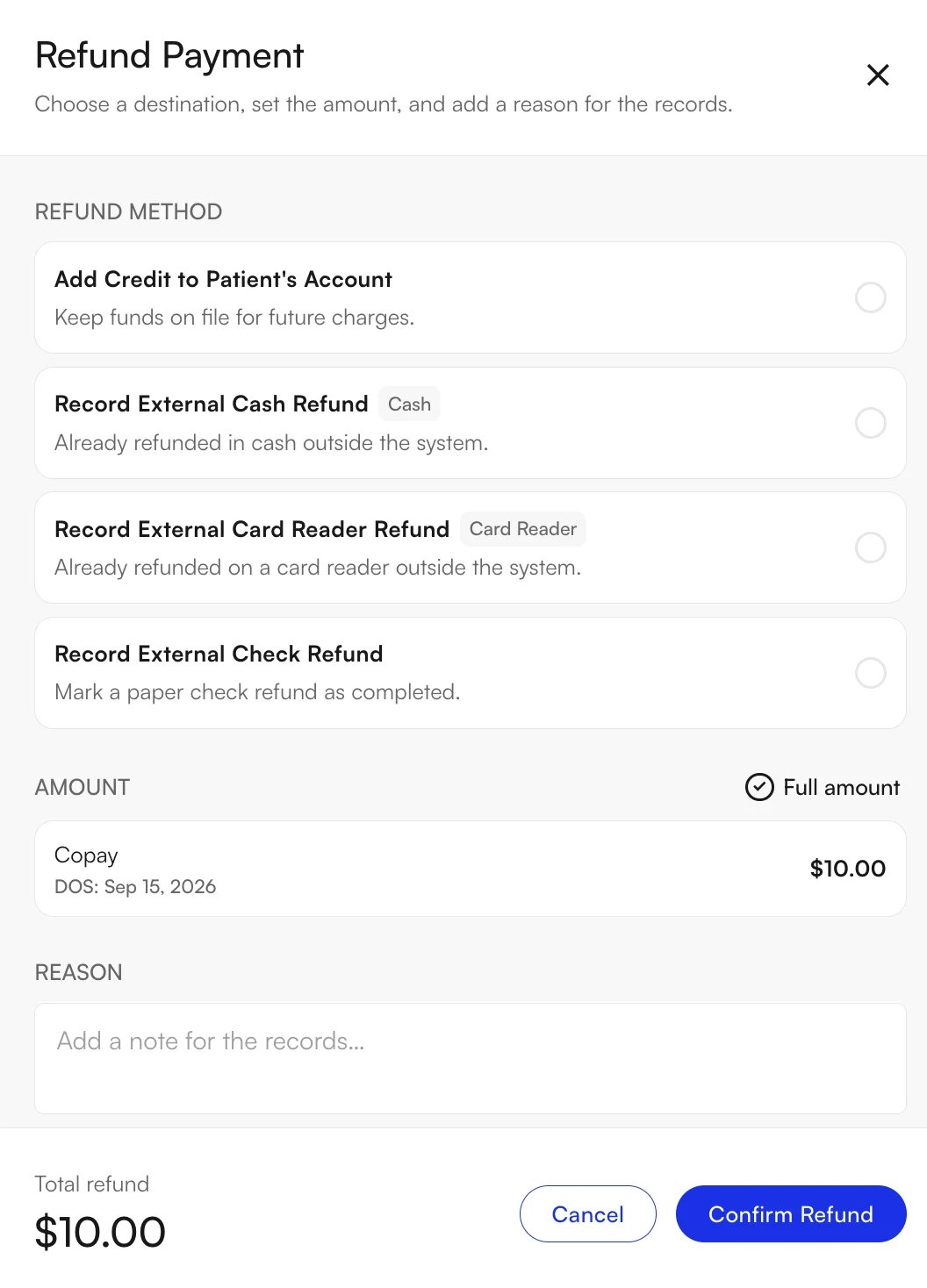
- Click Confirm Refund, then choose the facility location the refund should be recorded against.
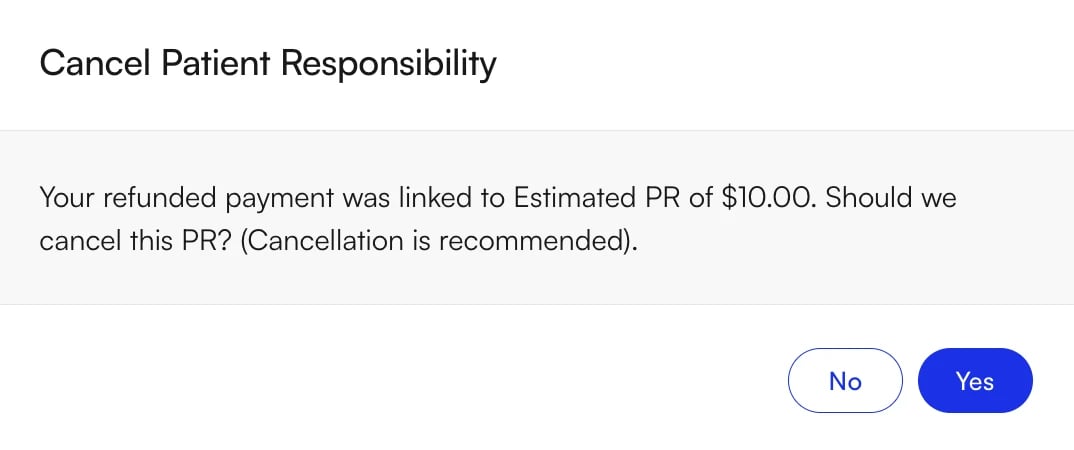
- If the refunded payment was linked to patient responsibility, Insights asks whether to cancel that PR. Click Yes to remove the PR along with the payment.
Refund Methods
- Add Credit to Patient’s Account — keeps the funds on file as credit for future charges.
- Refund to Credit Card (via Stripe) — refunds the original card. Available for payments originally taken on an Athelas card reader.
- Record External Cash Refund — record a cash refund you already made outside Insights.
- Record External Card Reader Refund — record a card refund already taken on a card reader outside Insights.
- Record External Check Refund — mark a paper check refund as completed.
FAQ
How do I refund a card payment taken on the Athelas card reader?
How do I refund a card payment taken on the Athelas card reader?
Choose Refund to Credit Card (via Stripe) — this refunds the original card for payments made on the Athelas card reader.
I refunded a self-pay payment but the patient still shows a balance. Why?
I refunded a self-pay payment but the patient still shows a balance. Why?
Refunding doesn’t remove the associated PR. Go to the Charges tab and cancel the PR to clear the balance.
I posted this payment to the wrong patient. How do I fix both accounts?
I posted this payment to the wrong patient. How do I fix both accounts?
A refund on its own only clears the incorrect account. To move the money to the right patient, or to correct a wrong amount or payment type, follow How to Correct a Posted Payment, which covers each mis-post scenario end to end.