
At a Glance
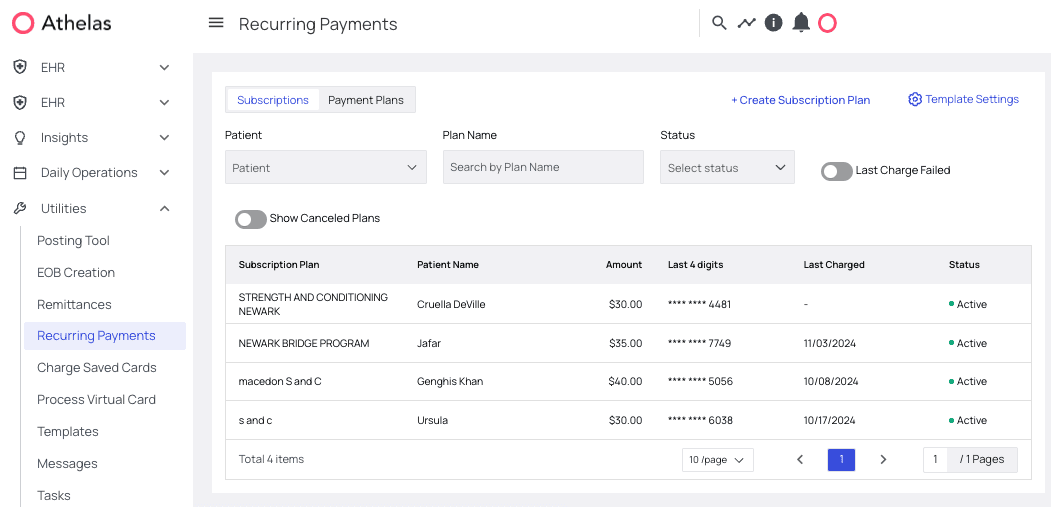
Some of the most reliable sources of revenue for many practices are subscriptions. Whether you’re charging for ongoing treatment plans, nutritional supplements, or anything in between, subscriptions can increase predictability in your practice’s income. The only challenge is that charging for subscriptions can be a real hassle. That’s why Insights built our Patient Subscriptions system. From this interface you can:- Create templates — these are the subscription programs you’ll enroll your patients in.
- Enroll patients — putting them on one of your subscription plans so they’ll be automatically charged at a frequency of your choosing.
- Troubleshoot failed payments — when card details fail, they’ll be added to a list of subscriptions to address so your team can get payments back on track.
Best Practices
1. If you have a particular subscription you use over and over again, start by adding a template for it. This will save your staff a lot of time and increase accuracy. Patients can always get customized plans if necessary. 2. Although most practices run subscriptions on a monthly basis, you also have the option automatically charge on a weekly or even daily basis. 3. We recommend checking for failing payments on a weekly basis to make sure no patients have quietly stopped paying for the services they’re receiving.Feature Walkthrough
1. Create / Manage Templates
If you’re going to be using the same subscription plan over and over, start by creating a template: From the Recurring Payments page, go into the Subscriptions tab and click Template Settings.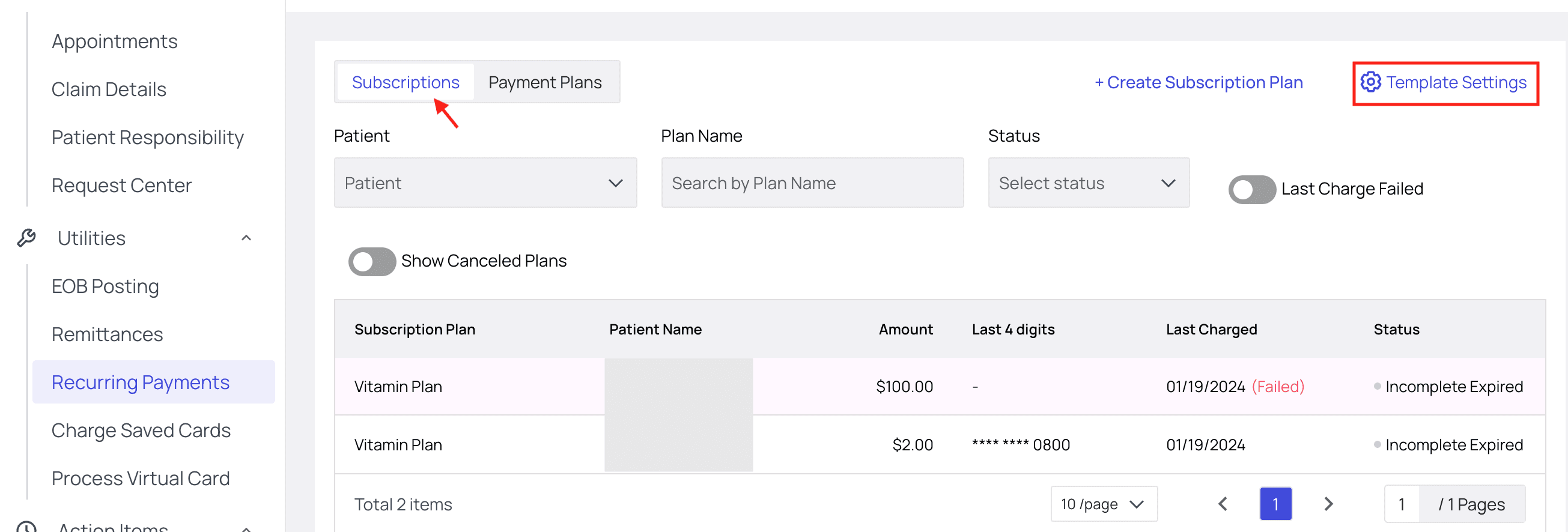
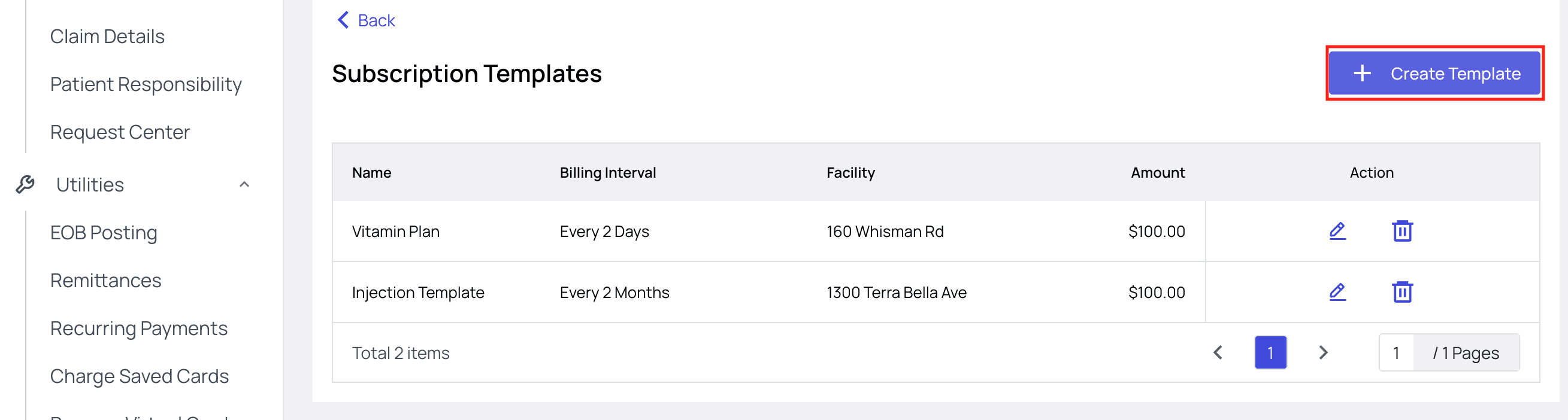
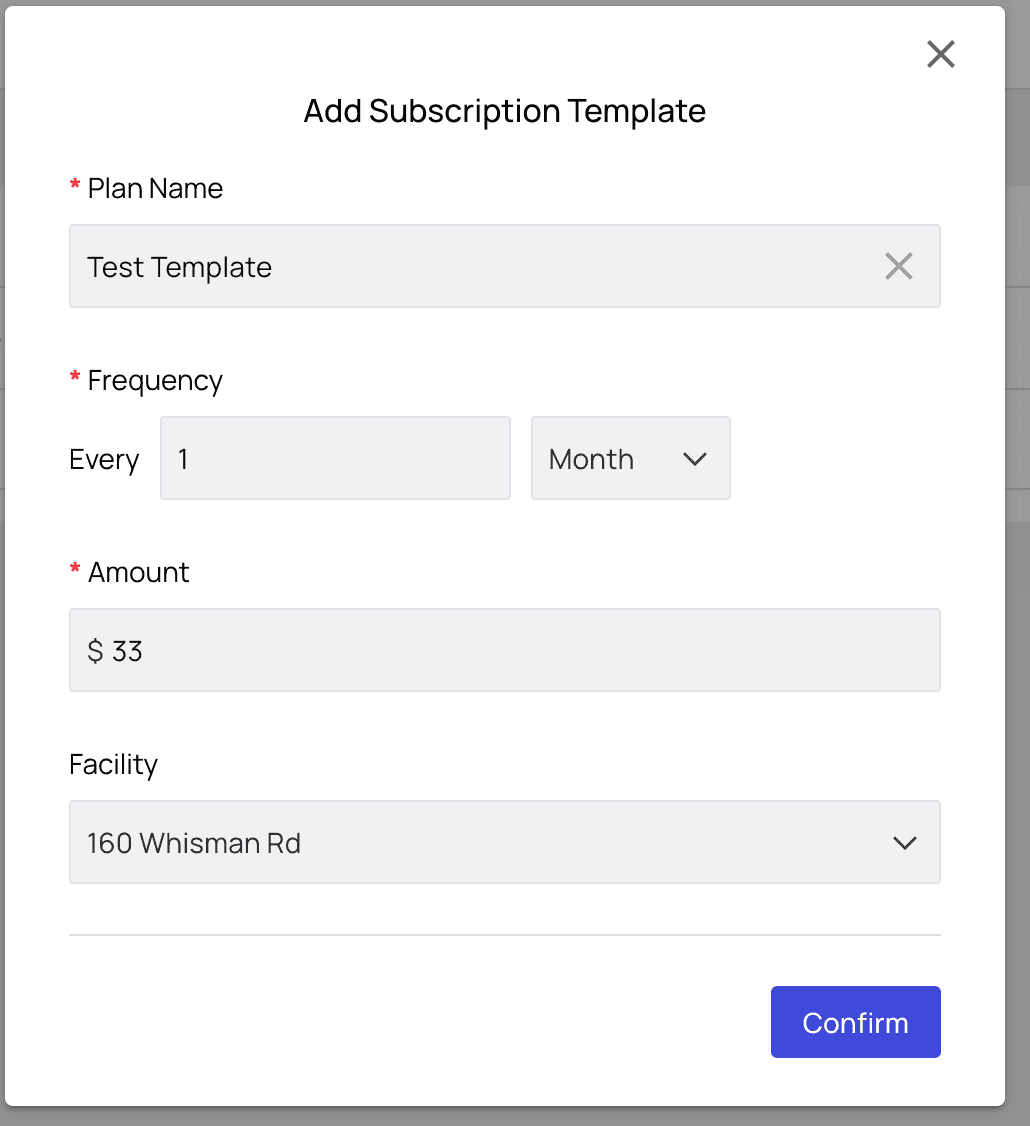
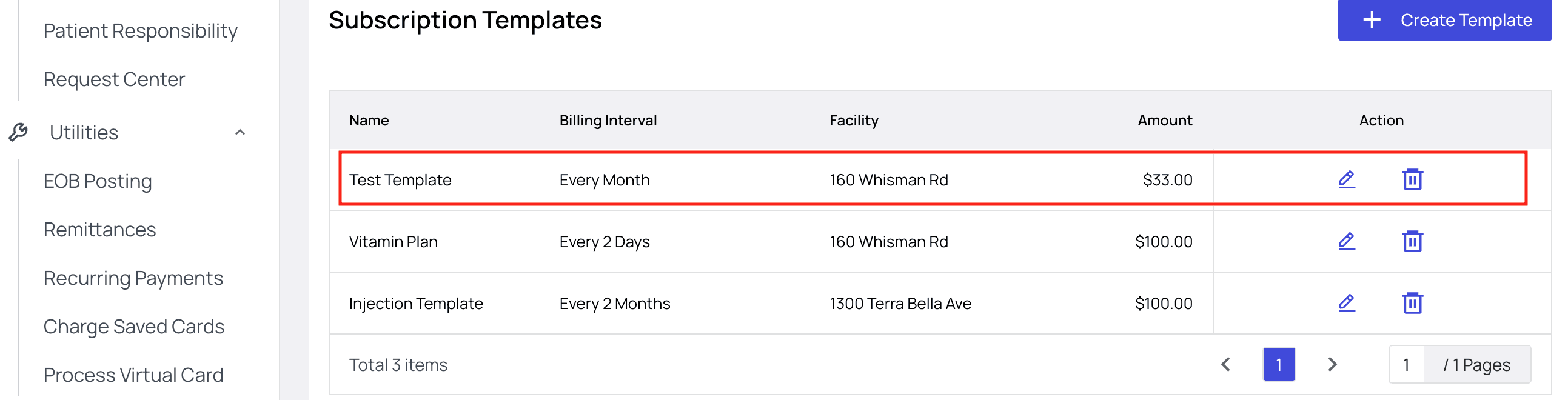
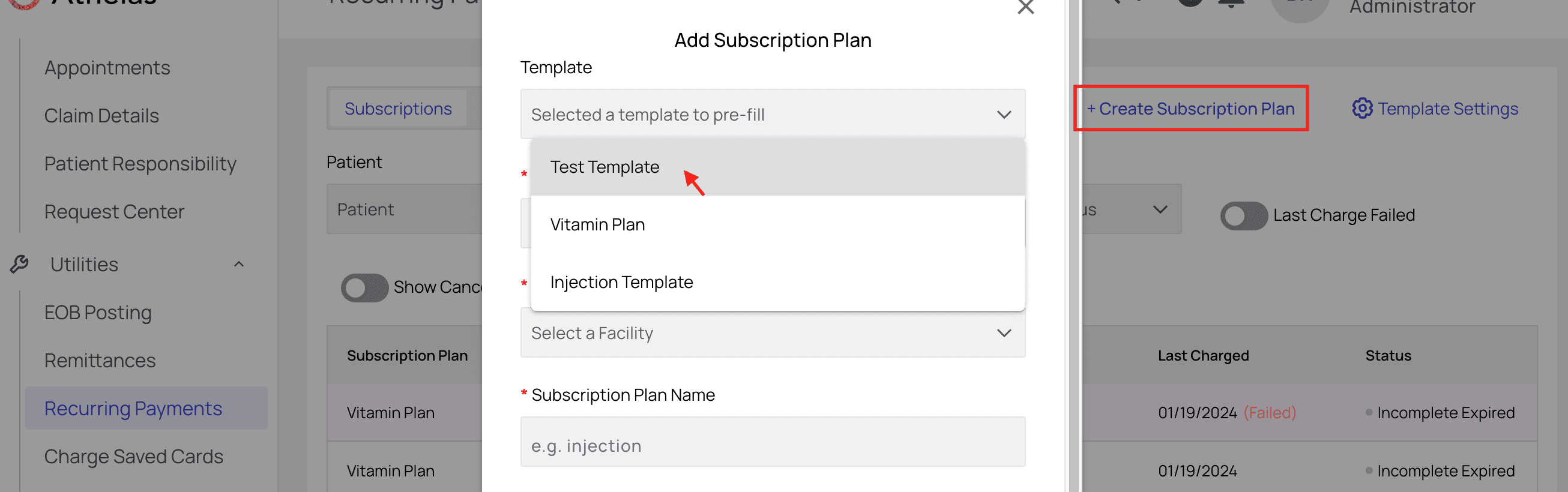
- It allows all patient subscriptions to be 100% customizable. You can start with a template and then make changes at the patient level without affecting the template.
- It means you can occasionally increase your subscription fee for new patients without automatically hiking rates for previous patients. Old patients will continue to be billed at their established rate.
2. Enroll Patients in Subscriptions
From the Recurring Payments page, click Create Subscription Plan.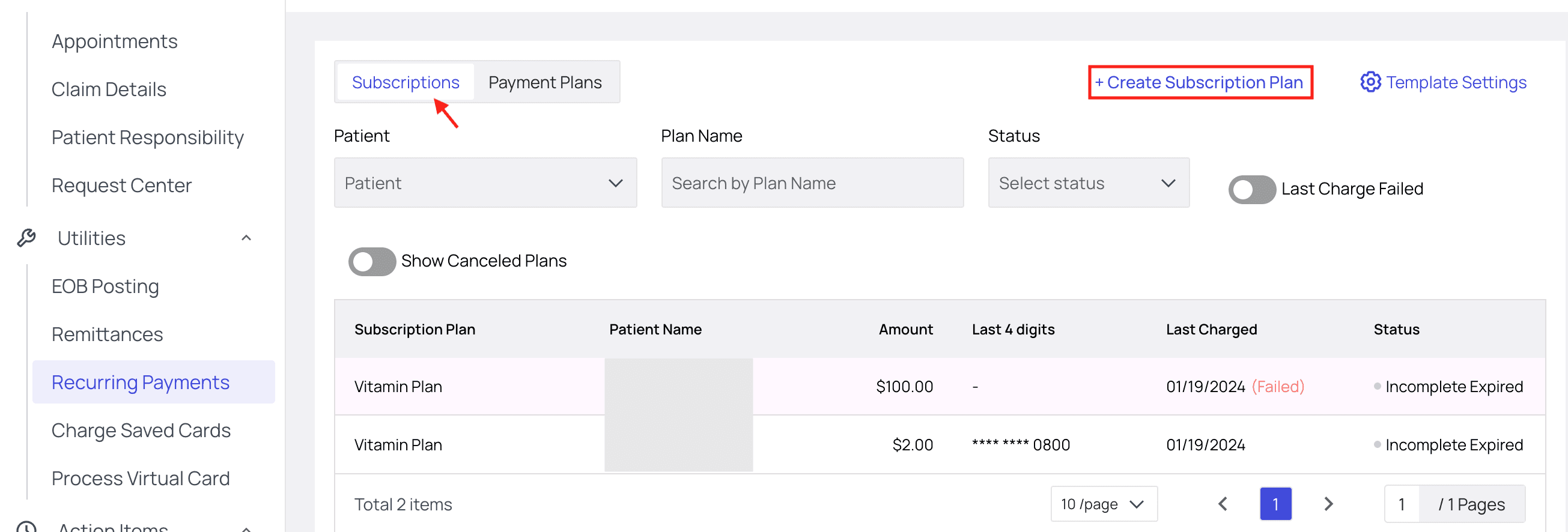
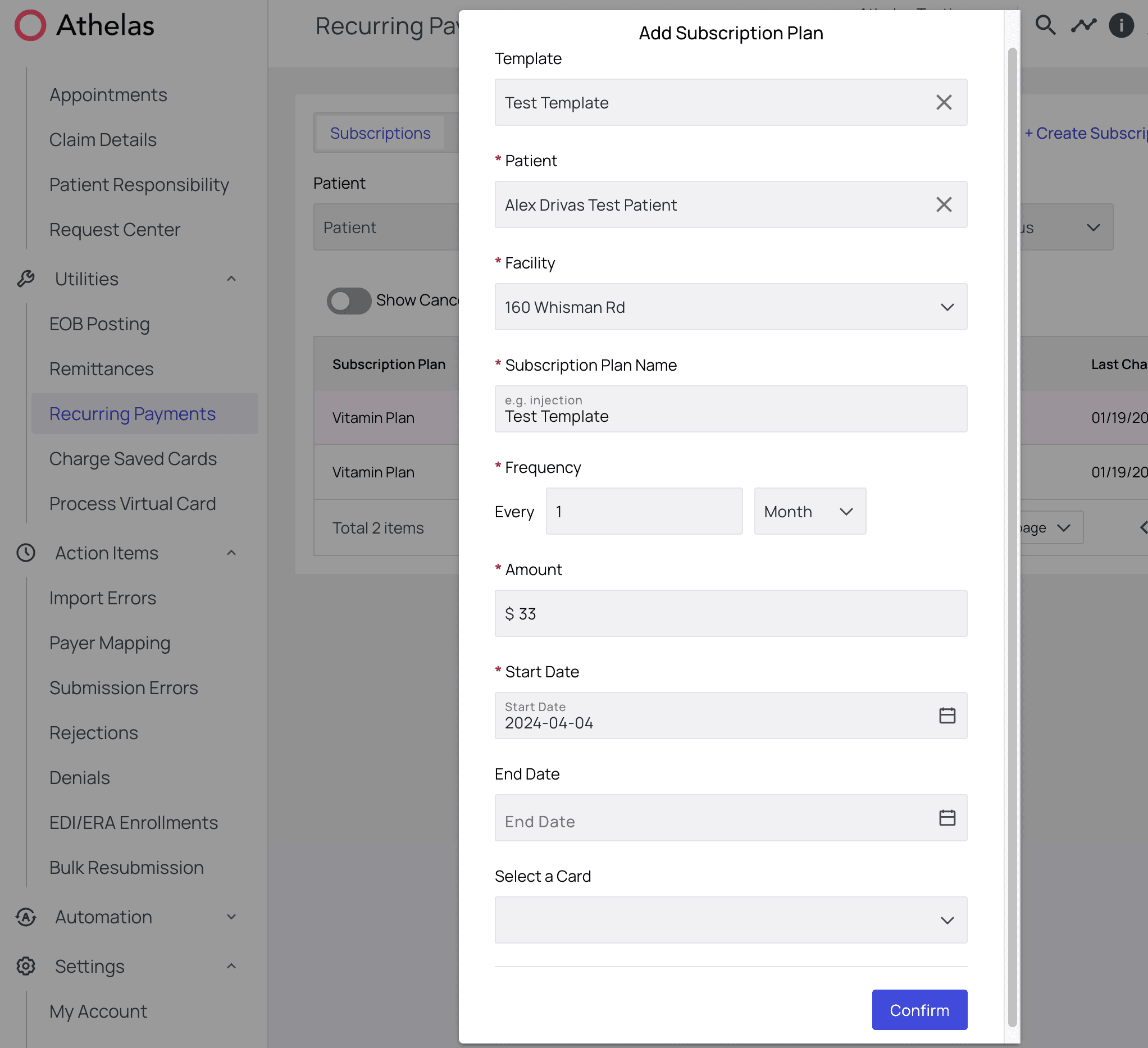
3. Edit, Cancel, or Pause Subscriptions
From time to time you’ll want to make modifications to your existing subscriptions, and you can do this with ease in the subscription detail view. First, click the subscription you want to modify.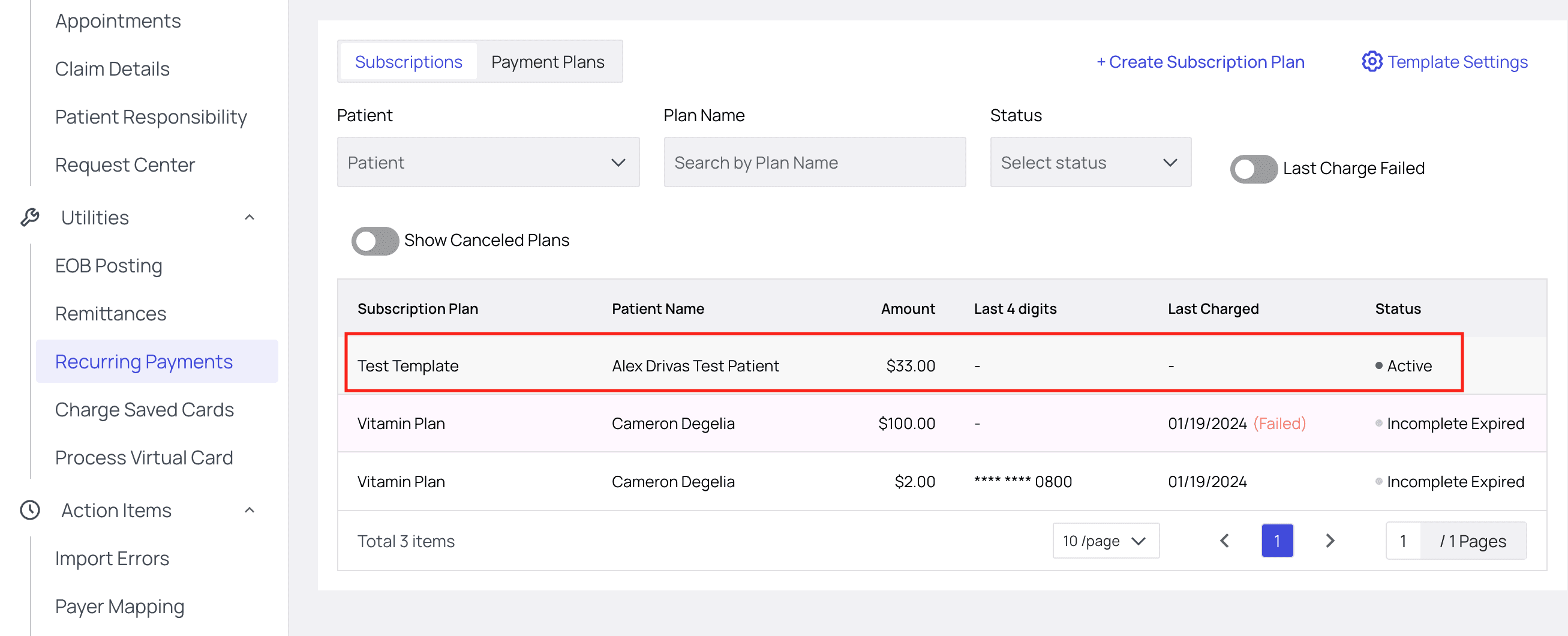
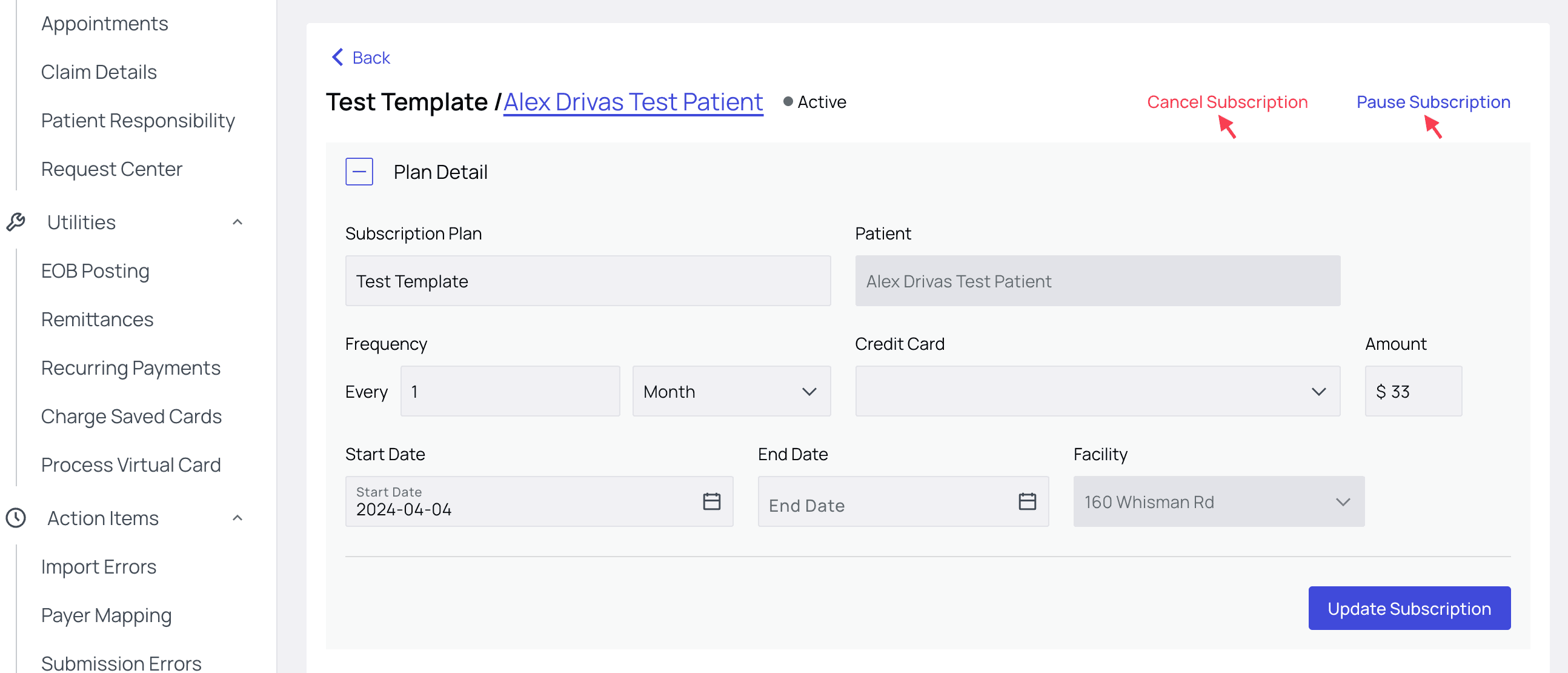
4. Past and Future Charges
Towards the bottom of the subscription details view you can see a log of all past payments and anticipated future payments, complete with payment amount and payment status. If you ever have a patient with a failing payment, this is where you’ll want to take a look to gather more information about what’s going on and take action.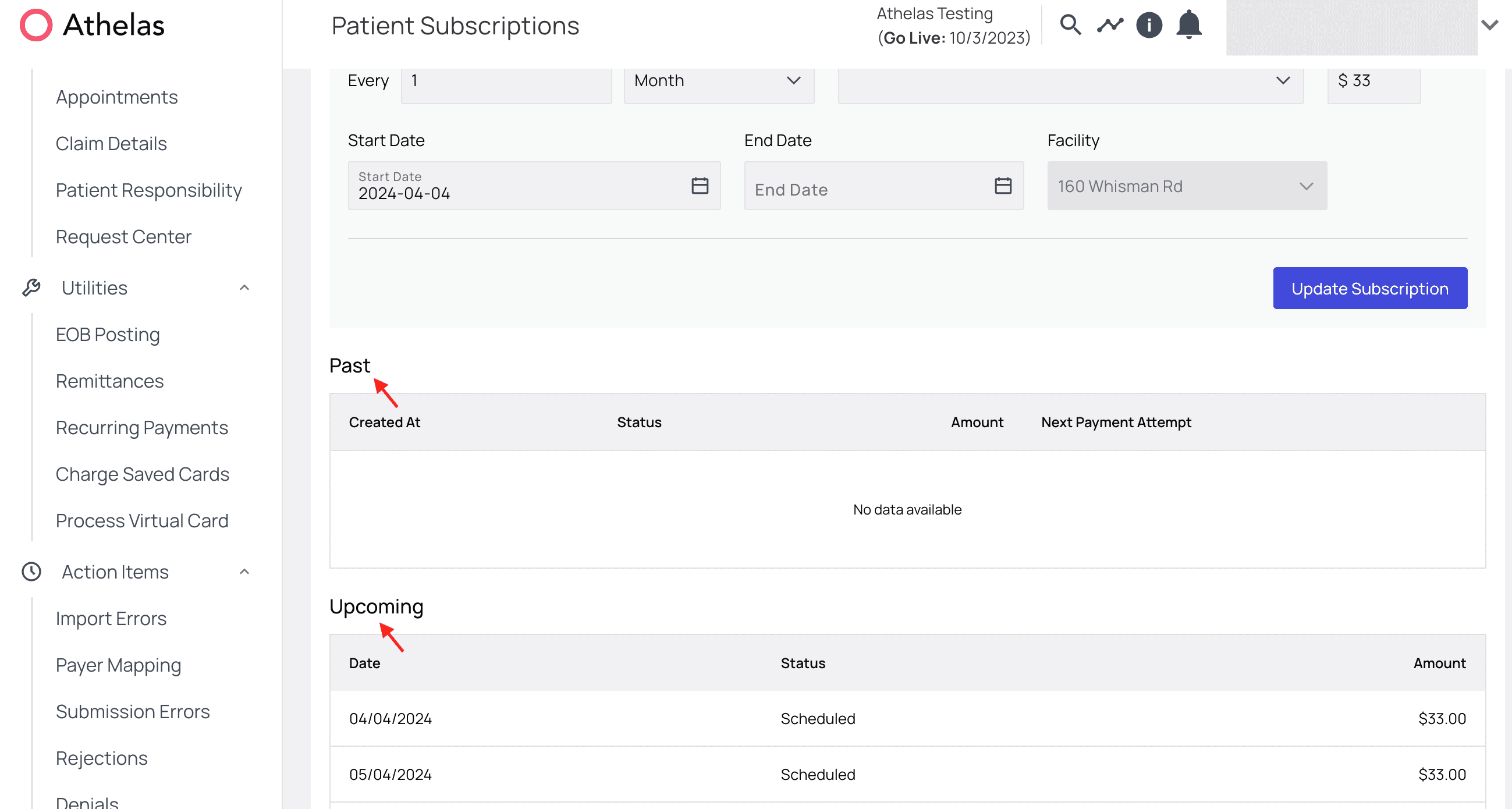
Toggle Filters
You can click the Last Charge Failed toggle to filter your list to show all plans for which that is the case. These plans will be highlighted red.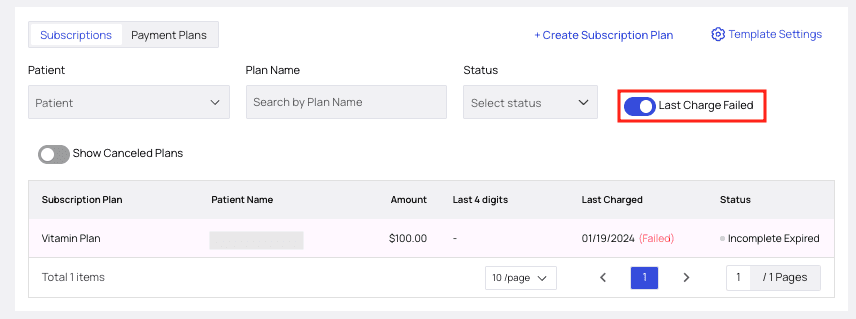
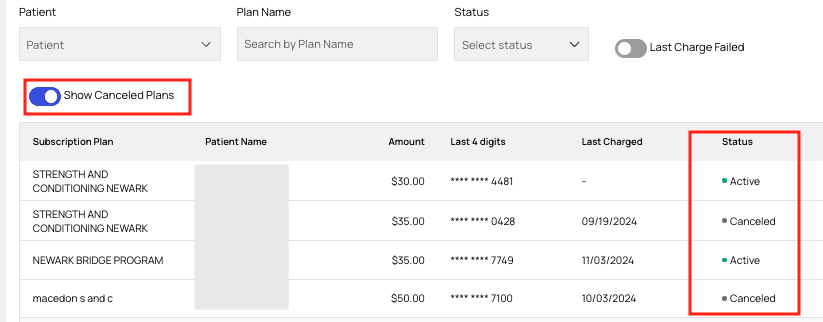
Status Definitions
Each subscription plan will have a status displayed under the ‘Status’ column.- Active — Currently enabled, all payments to date processed as expected.
- Canceled — Manually canceled by a staff member, not reversible. A new subscription will need to be made if the patient would like to continue.
- Expired — The most recent payment failed, and then failed again in the following 24 hours. Time to update payment information. Often seen in conjunction with ‘Past Due’ status.
- Incomplete — The first payment attempt failed. A second attempt will run within 24 hours. If it fails again, the status will update to ‘Expired.’
- Past Due — The scheduled payment failed and now the balance is outstanding. Often seen in conjunction with ‘Expired’ status.
- Scheduled — Upcoming payment