
Getting Started with the Claims Page
The Claims Page is where you manage your billing workflow in Insights. It centralizes claim review, validation, assignment, and submission in one interface, helping you process claims faster and catch errors before they become rejections.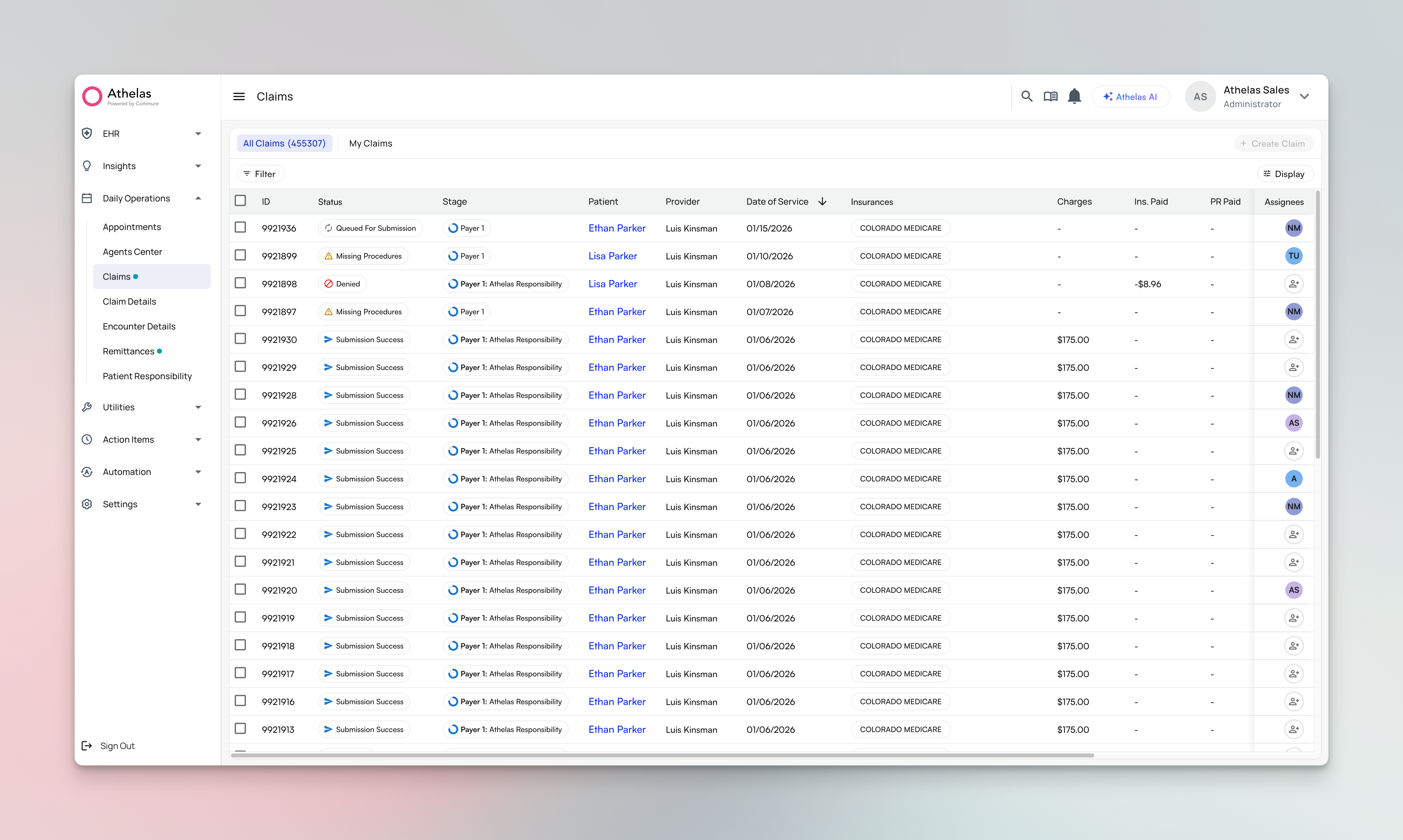
This page uses “claims” terminology to match industry standards; the underlying data is the same as what was previously labeled “encounters.”
What is the Claims Page?
The Claims Page gives you a unified view of all claims requiring review or action. You can filter claims by status, insurance, or age, assign work to team members, review AI validation flags, and submit claims—all without switching between tools. Key capabilities:- Filter and save views to focus on specific claim types, providers, or deadlines
- Assign claims individually or in bulk to balance team workload
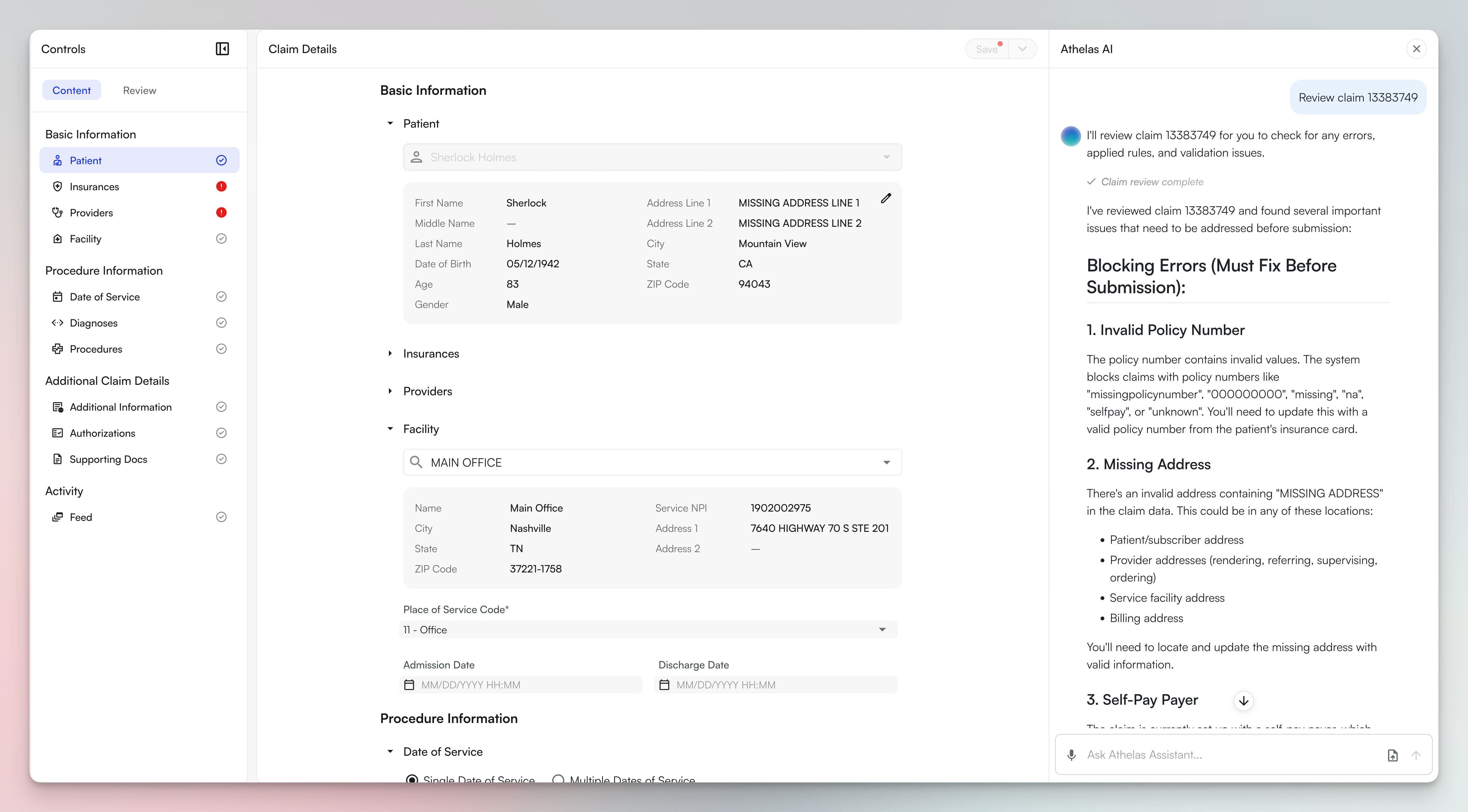
- Review AI validation that flags errors and suggests corrections before submission
- Collaborate with your team through comments and activity tracking
- Submit with the correct form — Claims automatically generate in the appropriate format (CMS-1500, UB-04, or ADA) based on the selected payer(s)
- Export claims as CSV — download all claims in the current view, including a Facility column, for offline analysis or reporting
- Duplicate views — right-click any saved view to copy it as a starting point for a new one
Getting Started
Accessing the Claims Page
Log in to Insights at insights.athelas.com and navigate to Claims from the Daily Operations tab. The page opens with your most recent view, or a default table showing all active claims.Working with Claims
Organizing Your Workflow with Filters
- Apply filters that match your workflow (e.g., filter for claims older than 85 days with status “Ready to Submit”)
- Sort by the column that matters most (typically date of service for timely filing)
- Click Save View and name it (e.g., “In Progress”)
- Click Save one more time and the view will appear in the view dropdown
Custom views are personal by default, meaning your saved views won’t be seen by anyone else.
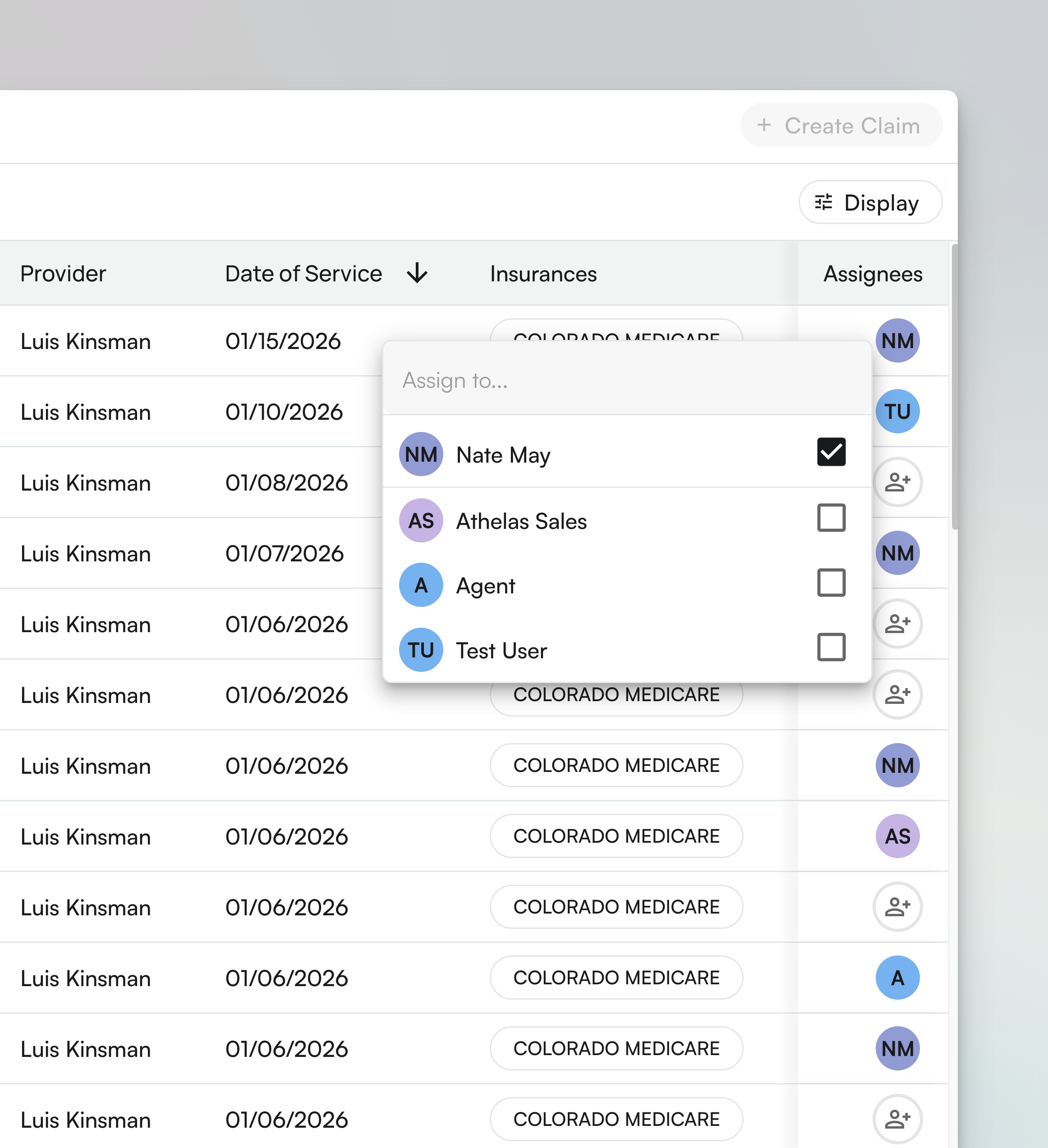
Assigning Claims to Your Team
- Single claim: Click the claim row, then select a team member from the Assigned To dropdown in the detail view
- Bulk assignment: Select multiple claims using checkboxes, then click Bulk Actions > Assign and choose the team member
Reviewing Claims with AI Validation
Collaborating Through Comments
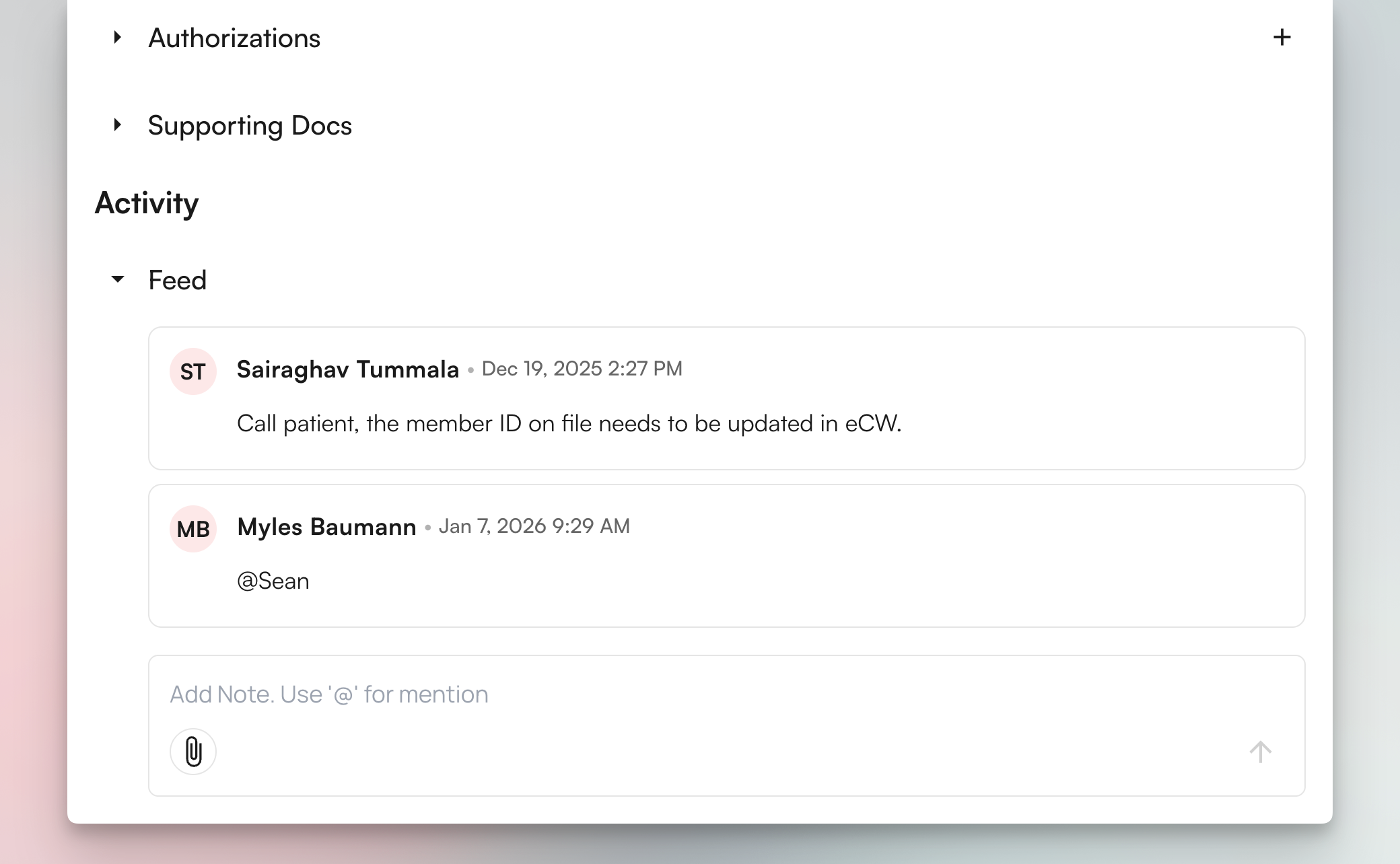
- Leave context for the next person who reviews the claim
- Use @mentions to notify specific team members (e.g., “@Sarah can you verify this diagnosis code?”)
- Check the feed before working on a claim to see if someone already identified issues
Using Athelas Assistant
Athelas Assistant is your AI-powered assistant inside every claim. Open it by clicking the Athelas AI button in the top navigation bar while viewing a claim. It understands the context of the claim you’re working on and can take action on your behalf. What Athelas Assistant can do on a claim:- Submit or resubmit a claim — ask it to submit the current claim or trigger a resubmission after corrections
- Fetch the financial summary — get a quick breakdown of charges, payments, and outstanding balances for the claim
- Update patient and claim information — edit demographics, insurance, or claim fields without leaving the Assistant panel
- Review against CCI and billing rules — ask it to check the claim for Correct Coding Initiative (CCI) edits and billing rule violations before submission
Submitting Claims
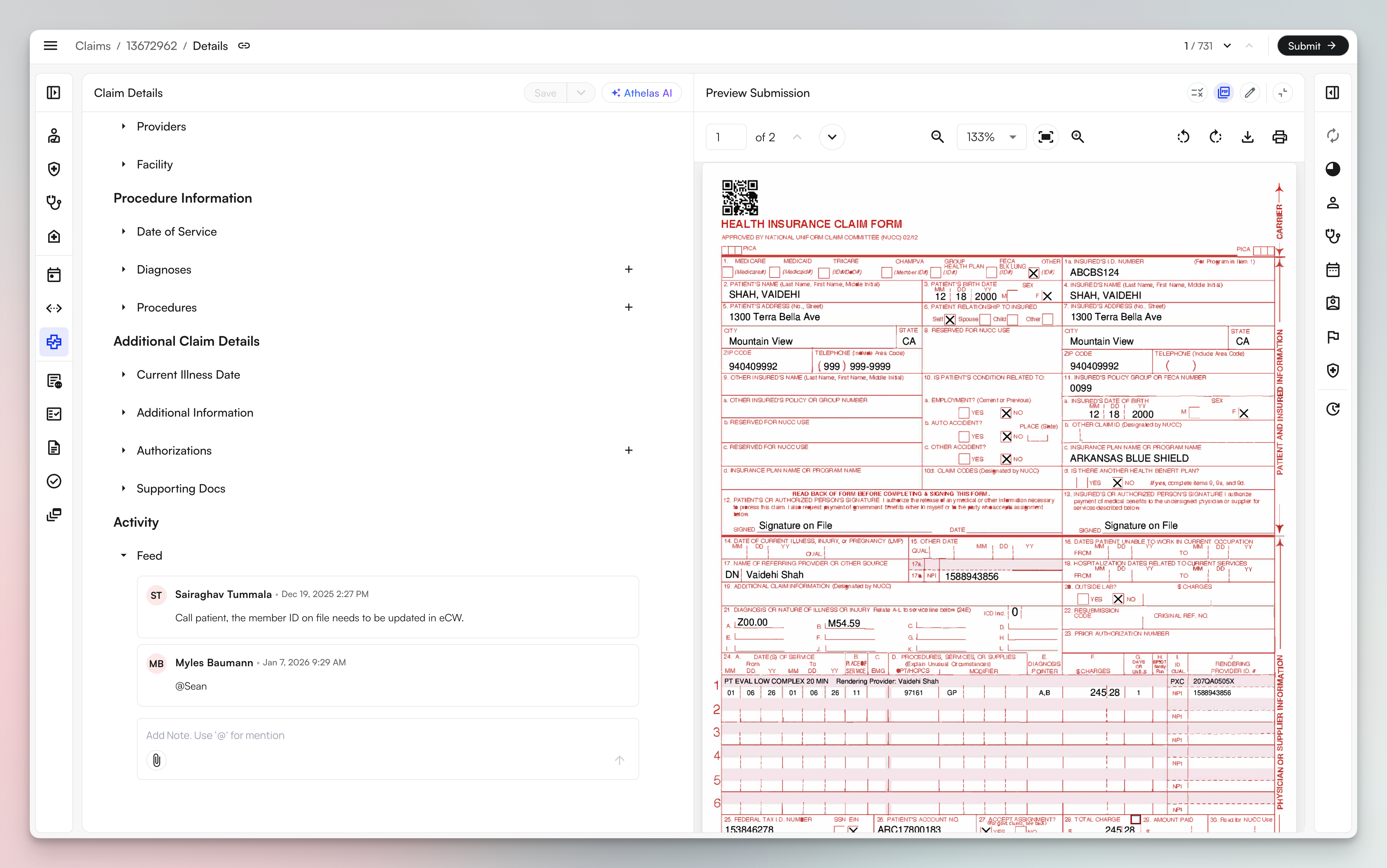
- Review the claim in the Claim Details panel on the left - this shows all your claim data fields
- Click Preview Submission to see the formatted form (CMS-1500, UB-04, or ADA) on the right
- The preview displays exactly how the claim will appear when submitted to the payer
- The submission type (Professional/Institutional/Dental) is shown in the top right of the preview panel
- Work with both views open to verify your claim data translates correctly to the final format
- Make changes to the claim as needed - when you edit claim fields, the preview becomes semi-transparent and shows “Not Synced” to indicate it needs to be refreshed. This occurs because the submission hasn’t run through billing rules since your last update, making the preview stale relative to the current claim state.
- Save your edits to the claim to refresh the preview and see your changes reflected in the formatted submission
- Review the Claim Details panel to confirm all fields are correct
- Click Preview PDF to see the formatted CMS-1500, UB-04, or ADA form exactly as it will submit
- Click the pencil icon in the submission preview to edit specific fields
- These edits only affect this submission and don’t change the underlying claim data
Select a Medicare Secondary Payer type code
Prerequisite: The claim must have Medicare as a secondary or tertiary payer. When Medicare is not the primary payer, select the MSP Type Code that explains why another payer is responsible first. This field appears when you edit the insurance or submission, in the submission preview, and on the insurance information card.
After you select a code and save, review the MSP Type Code in the submission preview before submitting the claim.
Enter anesthesia service times
Prerequisite: The service line must use an anesthesia CPT code from00100 through 01999.
Anesthesia service lines include Start Time and End Time fields. For a single-day encounter, the date remains the encounter date and you select the times. For a multi-day encounter, select the start and end date and time within the encounter’s date range. The end time cannot be earlier than the start time.
Working with diagnosis code pointers:
You can drag and drop diagnosis code pointers within the Procedures table to reorder them quickly — no need to delete and re-add.
Final submission:
Once you’ve verified everything looks correct:
- Review patient, insurance, diagnosis, and procedure information one final time
- Click Submit when ready — if the claim has been submitted before, the button will say Resubmit instead
- The claim moves to “Submitted” status and appears in your submission history
Related Guides
Go deeper on the workflows that live on the Claims Page:- Organizing Your Claims Worklist — default views, grouping by status and reason, display settings, and date filters.
- Working a Claim: Context & Activity Feed — how to read a claim’s status reason, submissions, remittances, payments, and activity feed.
- Deferring a Claim — set a claim aside until it’s actionable again, without losing track of it.
- Claim Status, Stage & Payer Status — what every status, stage, and payer status means, and which ones are workable.
FAQ
How do I know if a claim is ready to submit?
How do I know if a claim is ready to submit?
Review the AI validation flags in the Claim Details panel. Claims are ready to submit when:
- All required fields are filled in
- No critical validation errors are present (red indicators)
- The preview submission shows the correct format for your payer
- Patient, insurance, diagnosis, and procedure information is accurate
What's the difference between editing the claim and editing the submission directly?
What's the difference between editing the claim and editing the submission directly?
When you edit the claim in the Claim Details panel, your changes go through billing rules and update the underlying claim data. This ensures consistency and proper rule application.When you edit the submission directly (using the pencil icon in the preview), your changes bypass billing rules and only affect that specific submission output. The underlying claim data remains unchanged.Note: Direct submission edits should be used sparingly for final adjustments only, as they don’t go through the normal billing rules engine.
What happens if I need to make changes after submitting a claim?
What happens if I need to make changes after submitting a claim?
Once a claim moves to “Submitted” status, you’ll need to work with your billing team to make adjustments. The claim will appear in your submission history, and you may need to resubmit or make corrections depending on your practice’s workflow.
How do I filter claims by multiple criteria at once?
How do I filter claims by multiple criteria at once?
Use the filter bar at the top of the table to apply multiple filters simultaneously. You can combine filters for claim status, insurance provider, primary, secondary, or tertiary Insurance Group, claim amount, age, assigned team member, provider, date range, Submission ID, Insurance Billing Type, and CARC/RARC denial reason codes. Once you’ve set up your ideal filter combination, save it as a custom view for quick access later.Tip: Press
F to open the filter panel without using your mouse.How do I quickly copy a Claim ID?
How do I quickly copy a Claim ID?
Press
CMD + . on Mac or CTRL + . on Windows while viewing a claim to instantly copy the Claim ID to your clipboard. You can then paste it into any other tool, message, or search field.Press CMD/CTRL + C to copy a direct link to the claim instead — useful for sharing with a teammate.How do I filter claims by denial reason codes (CARC/RARC)?
How do I filter claims by denial reason codes (CARC/RARC)?
Open the filter panel (press
F or click Filter) and select the CARC or RARC filter. Enter the specific denial reason code you want to focus on, and the table will update to show only claims with that code.This is especially useful for identifying denial patterns and prioritizing which denial types to work first.