
Here’s How to Do It
Prerequisites: Confirm the patient and the card you want to use for the plan. Your role must also allow you to manage payment plans. If you do not see Set Up Payment Plan, ask an administrator to update your role. From the Patient Responsibility page, click on the Actions menu and choose Set Up Payment Plan.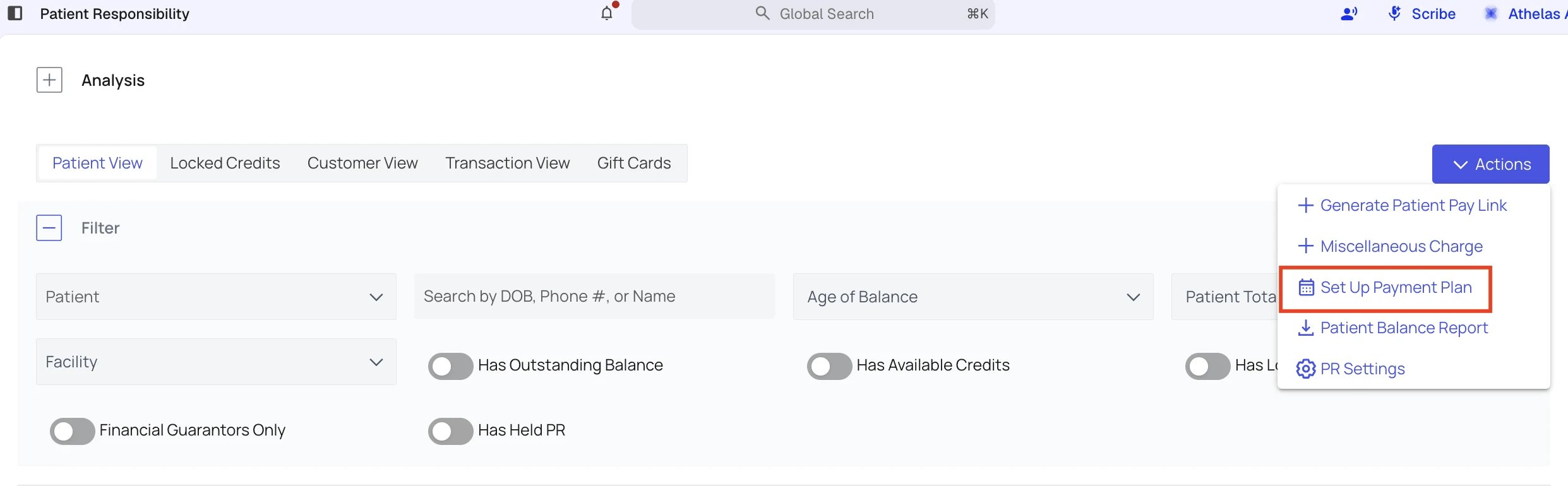
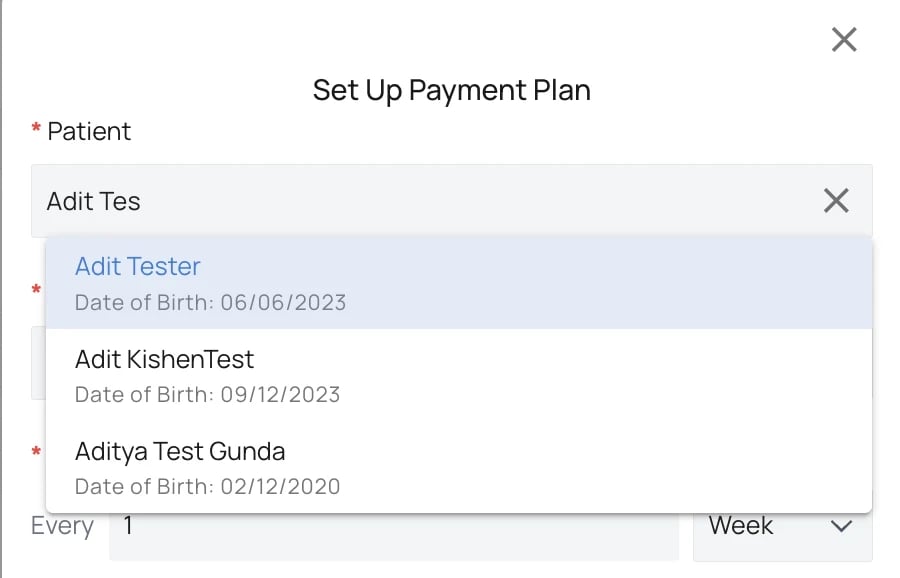
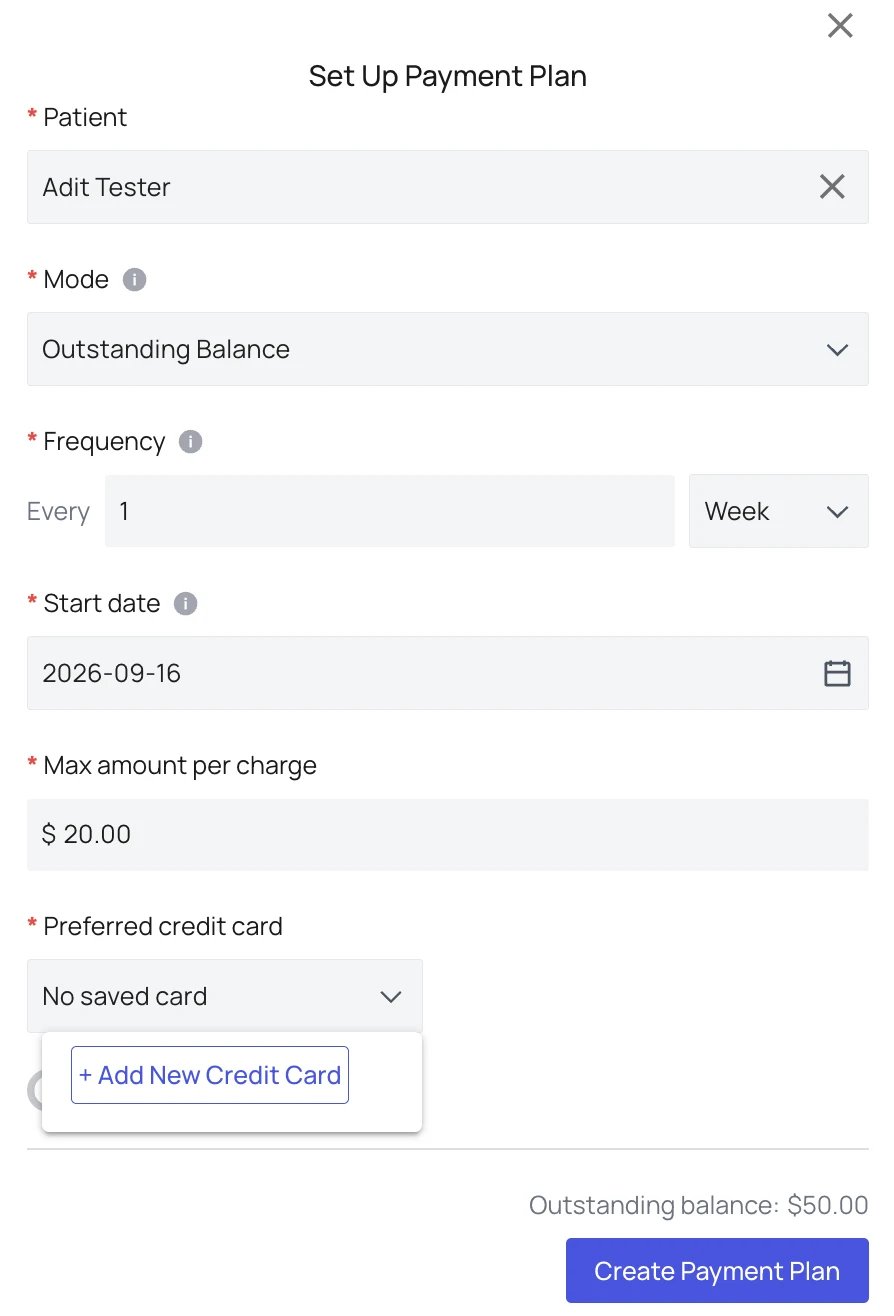
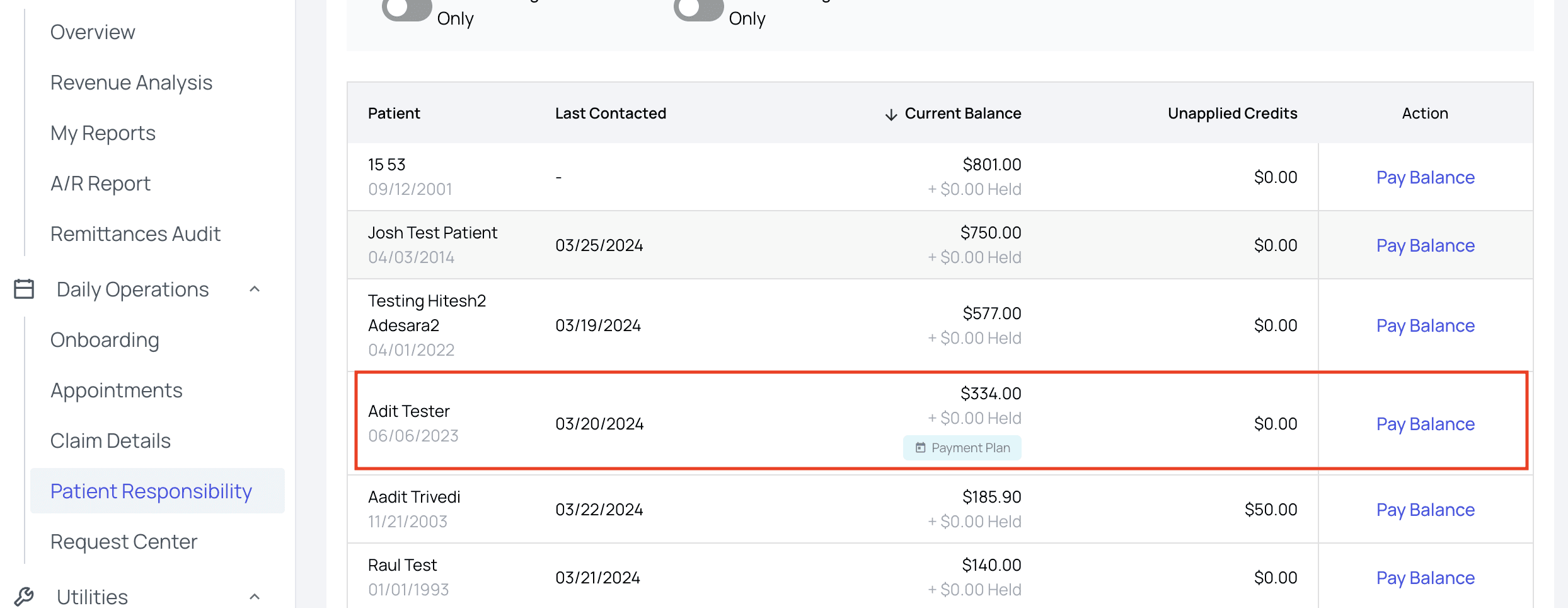
Create Payment Plan, and you’re done! You can now see a Payment Plan indicator on the patient’s listing, under their Current Balance.
FAQ
What happens when my monthly payment date does not exist in a shorter month?
What happens when my monthly payment date does not exist in a shorter month?
The payment falls on the final day of that month. The plan returns to your selected day in the next month that includes it.
Can I use a fixed amount for each payment?
Can I use a fixed amount for each payment?
Yes. During setup, you can use the patient’s outstanding balance or set a fixed amount per payment.