
At a Glance
The PR Settings page holds the customizable settings that drive PR collection for your practice. Work with your Account Manager on the initial setup, then adjust as you go.Accessing PR Settings
There are several ways in. From the Patient Responsibility page, open the Actions menu and choose PR Settings.General
- Card Fees — set the percentage charged to patients paying by card, or toggle Use exact Stripe fee to pass through Stripe’s own per-transaction rate. Toggle Auto-Save patient credit cards on or off. See Manage Credit Cards.
- Reader Label — relabel the Athelas card readers registered to your account.
- Receipt + Patient Statement Settings (facility-specific) — change how receipts and statements look per facility, including adding a facility logo. See Patient Statements and Print a Patient Statement.
- Text Message Customization — customize the payment text patients receive. Add dynamic fields (Patient Name, Current Balance, Most Recent Facility, etc.); the Link to Pay is required. See Turn Off Patient Texts and Request Payment by Text or Email.
- Patient Statement Settings — basic info shown on statements and a custom statement message (detailed statement config lives on the Patient Statements page).
- High Balance Setting — the amount at which balances are flagged as “high” (shown in red), plus optional follow-up alerts: Insurance Alert (last claim denied for invalid/expired insurance), Credit Card Alert (payment-plan/subscription charge failed), and Contact Info Alert (statement undeliverable).
- Skip Collection — manage the reasons staff can select when skipping a collection.
- Custom Payment Types — add, edit, or deactivate custom line-item payment types. See Miscellaneous Line Item Charges.
- Partial Payments, Payment Modal, and Welcome Message — allow/disallow partial payments (e.g., via text) and toggle the post-payment welcome message (this toggle syncs everywhere in Insights).
Pre Visit
Set defaults for pre-visit payment collection: which suggestions to show (copay is required; deductible and coinsurance optional), the suggestion mode (highest PR only, or all relevant PR amounts), default charges by facility, tier 2/3 benefit handling, default Service Type Codes, and the default welcome-message behavior. See How to Create Suggested PR Rules.Credits
Set how many days to wait after a claim is approved before overpayment credits (held in reserve in case of resubmission) are automatically released to cover outstanding balances.Charging using Patient Credits
- When a patient has available credits, the credit balance appears in the Tags column of the Appointments page.
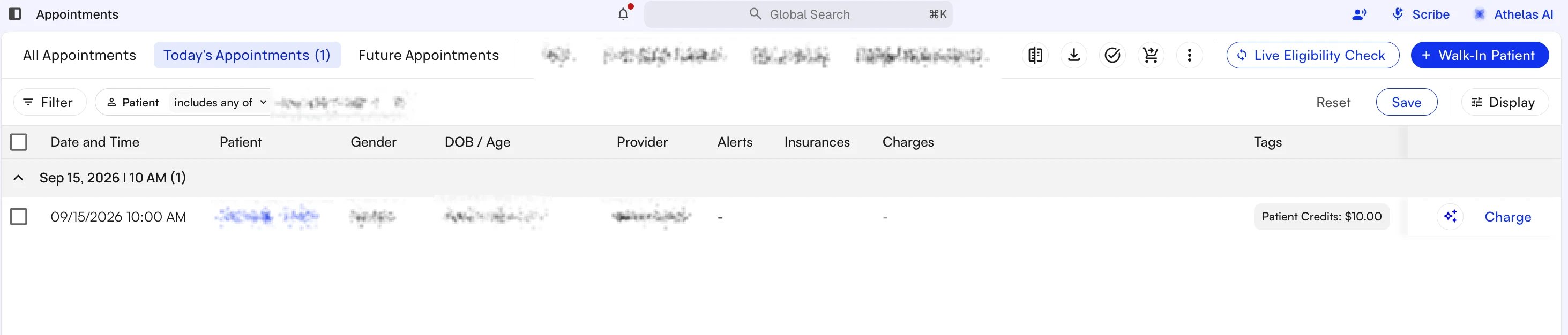
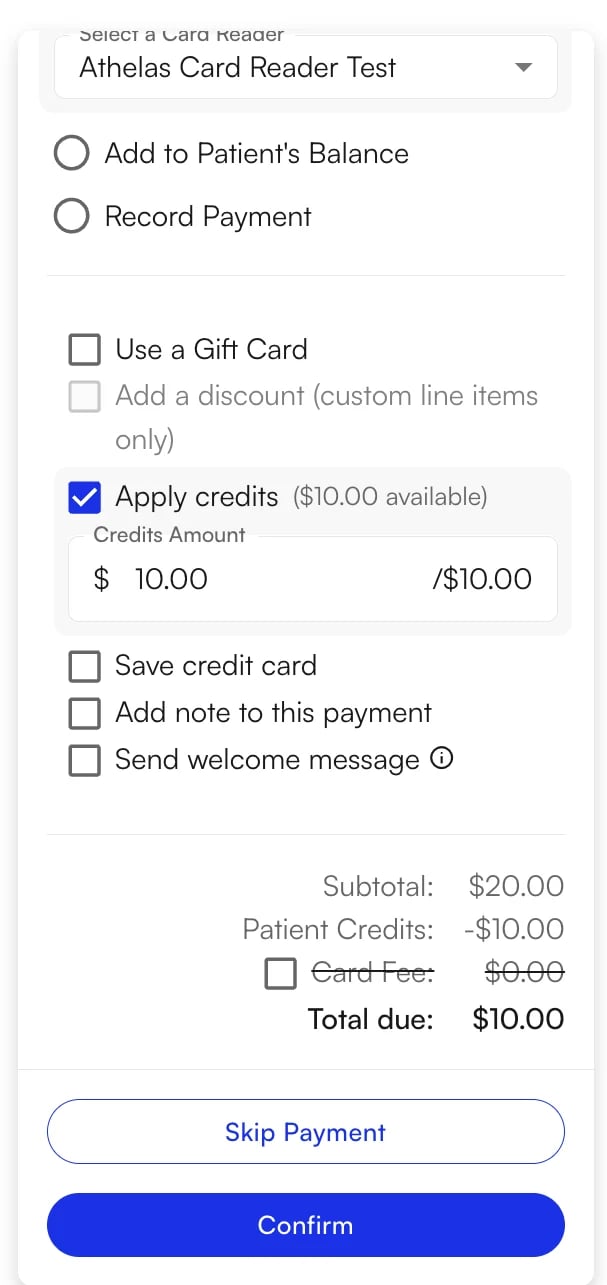
- Click Charge, select Apply credits, and enter the amount to apply — either the full available credit or part of it.
- Total due is the subtotal minus the credits you applied.
Out of Network Insurances
Map out-of-network insurances so Insights can run eligibility and provide PR suggestions for those patients.Other Tabs
Depending on your site and permissions, you may also see:- Suggested PR Rules — see How to Create Suggested PR Rules.
- Service Charges — CPT-based service items; see Post Encounter CPT Based Service Charges.
- Self-Pay Fee Schedule — see Self-pay Fee Schedule.
- Sliding Fee Schedule — for FQHC sites.
FAQ
Where do I turn off automatically saving patient cards?
Where do I turn off automatically saving patient cards?
In the General tab under Card Fees, toggle Auto-Save patient credit cards off.
What must a custom payment text include?
What must a custom payment text include?
A custom payment text must include the Link to Pay dynamic field. Other fields (patient name, balance, facility) are optional.