
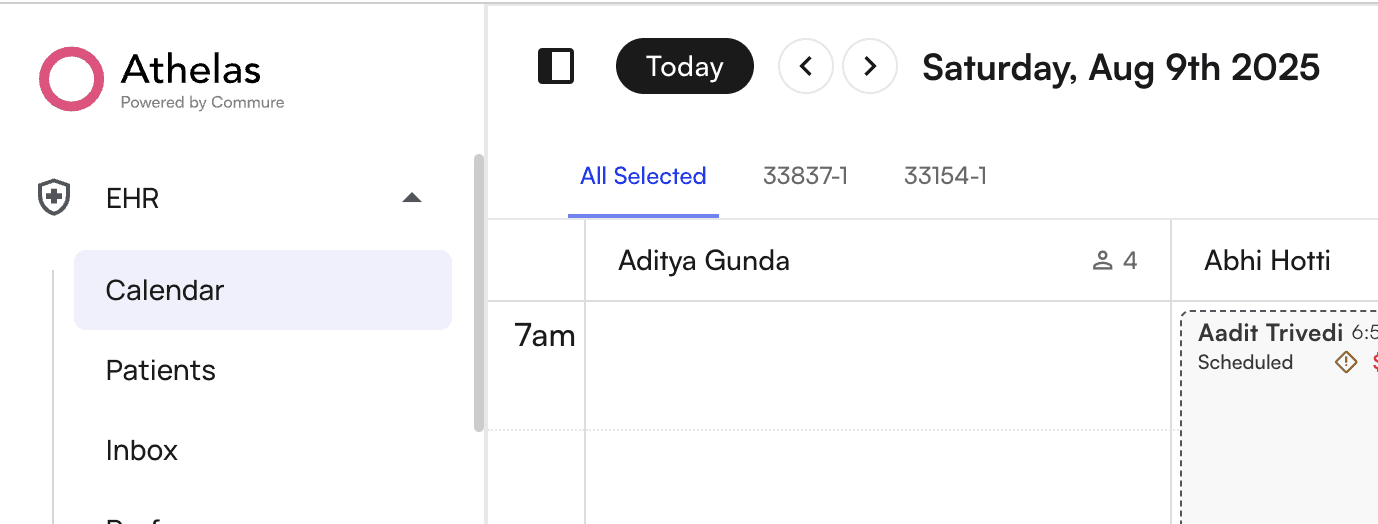
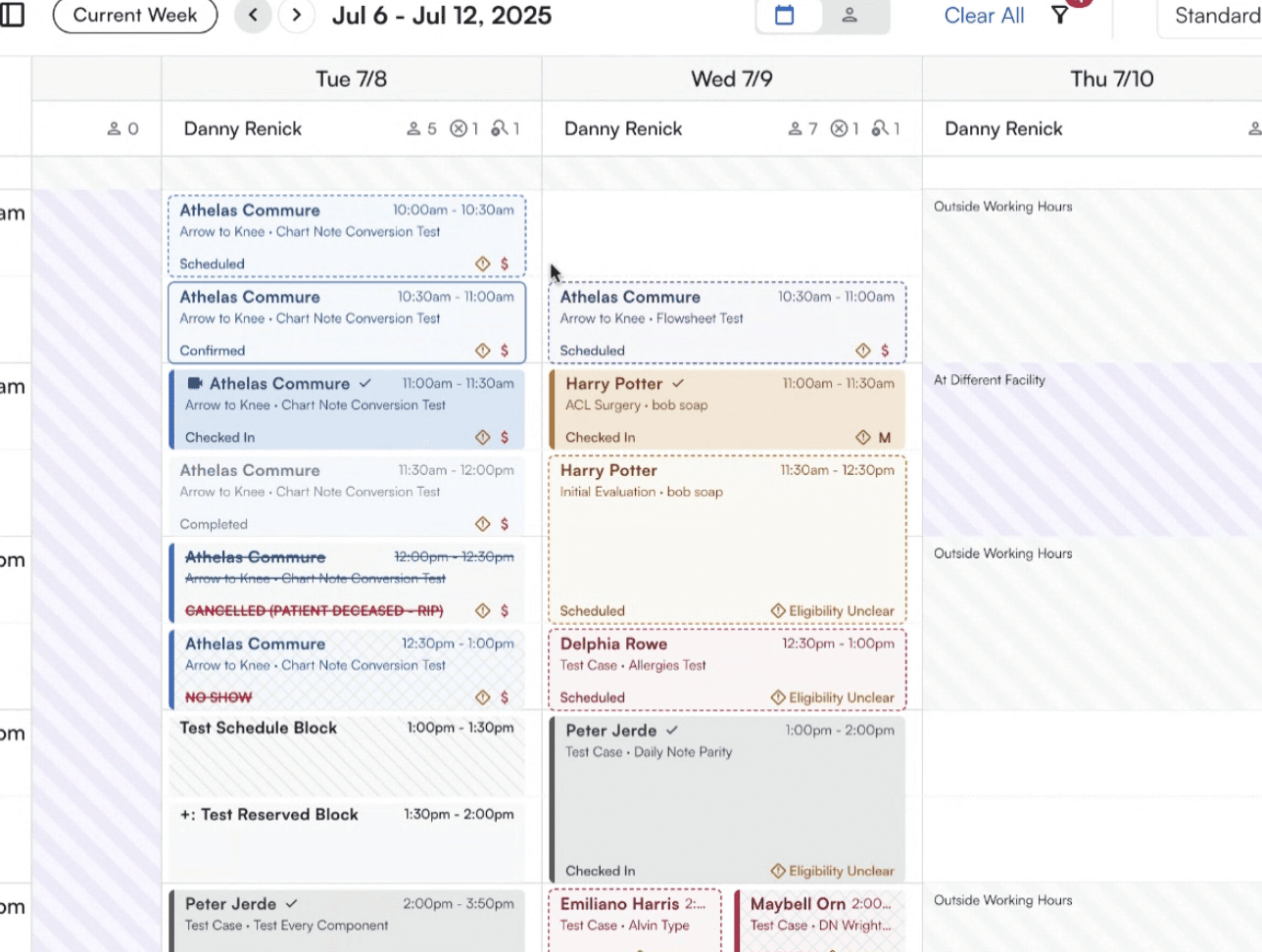
Appointment Stages:
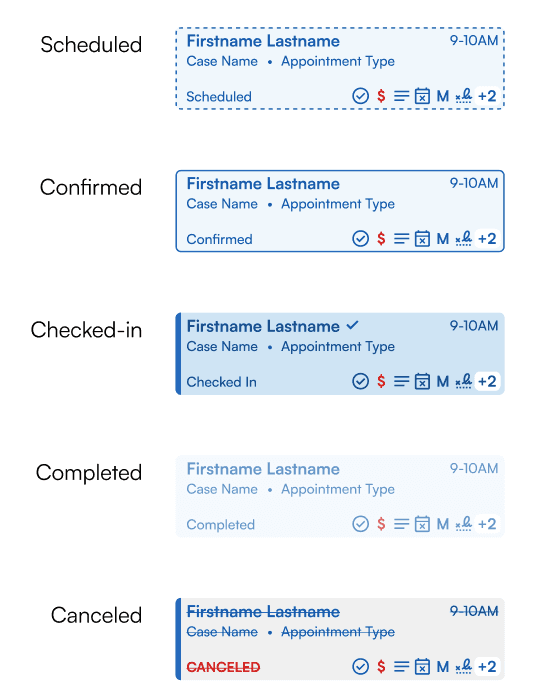
As appointments move through their different stages, the blocks will reflect the designs below. Some advantages:- Easier to see canceled appointments
- Completed appointments fade from the schedule so you can focus on scheduled/confirmed appointments
Appointment Tooltip w/ Helpful Icons and Alerts:
Hover over a Calendar block to view the tooltip Condensed + Expanded View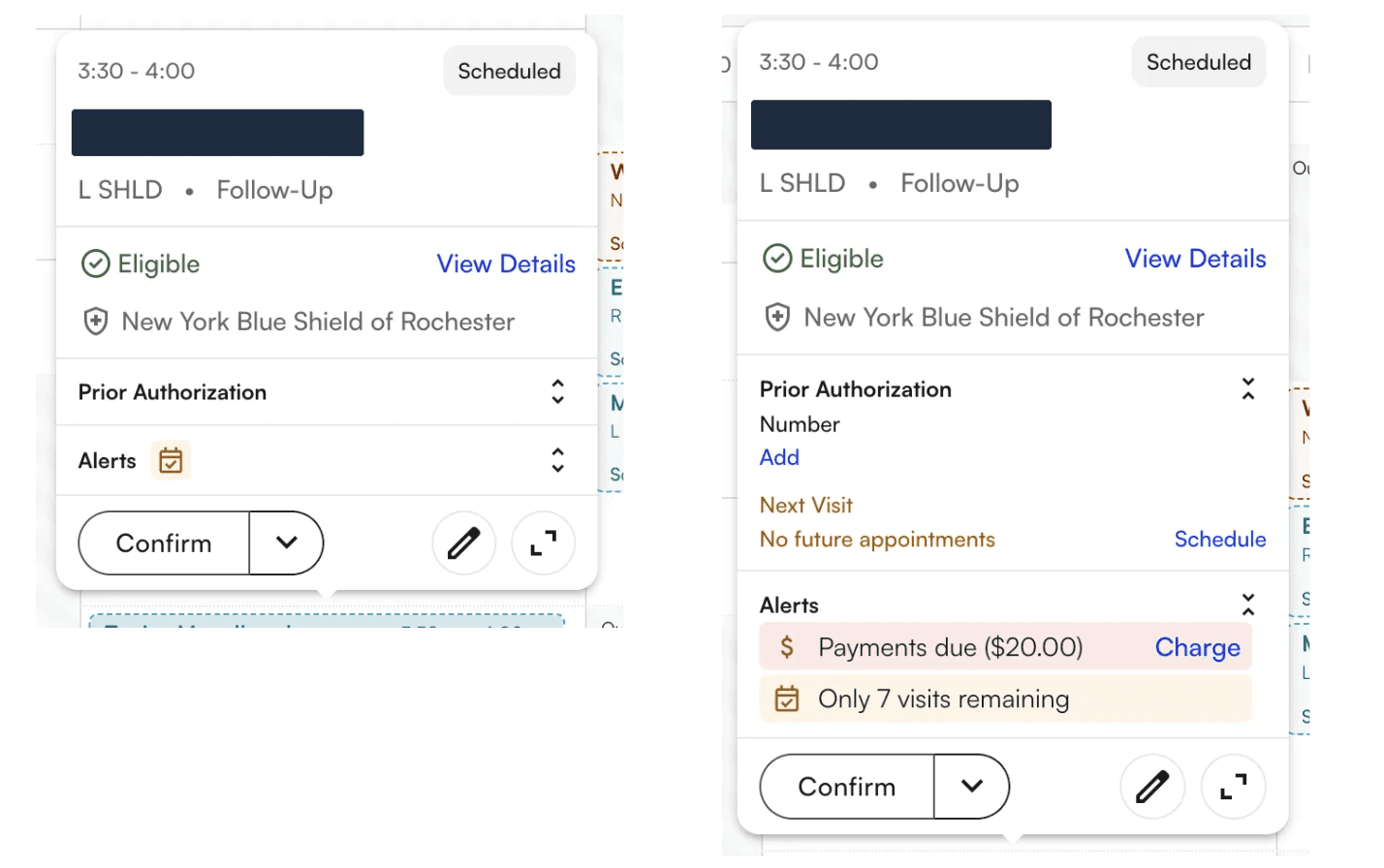
Tooltip Design
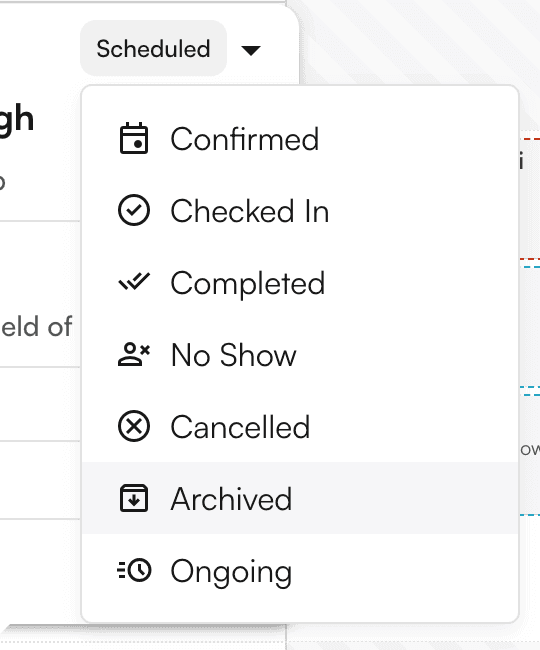
The tooltip shows you the most helpful information first, namely:- Appointment Status (”Scheduled”) - simply hover over your appointment to update status
- Case and Appointment Type

- Eligibility Status and Insurance

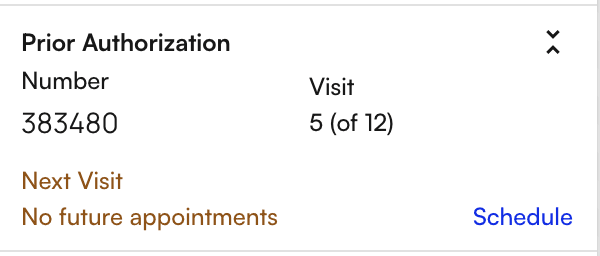
- Authorization Status and Next Visit Scheduling
Types of Alerts
- Eligibility



- Pre-Visit Payment

- Visits Remaining

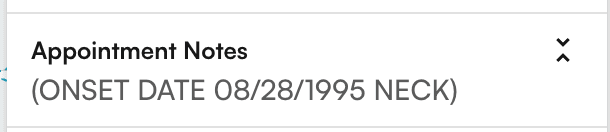
- Appointment Notes

- Insurance Based
