
At a Glance
When a payer denies a claim, you can build the appeal packet yourself from the Claims Page and send it without leaving Insights. A packet has three parts: a cover letter, the payer’s appeal form, and your supporting documents. Athelas AI drafts the cover letter and fills in the payer form from the claim, so most of your time goes into checking them.Beta: The self-serve appeal packet is in beta. If you don’t see Appeal Packet under Send Documents, ask your Athelas team to turn the feature on for your site.
Before You Start
- The claim needs a denied or partially denied submission. That submission is the one you appeal.
- Have your supporting documents ready, such as chart notes or medical records. You can pick files already on the claim or upload new PDFs (up to 10 MB each).
Build and Send the Packet
Open the denied claim, click Actions, then Send Documents, and choose Appeal Packet. The Send Appeal Packet page opens. The flow has four steps, shown at the top right of the page (for example, 1 of 4: Materials).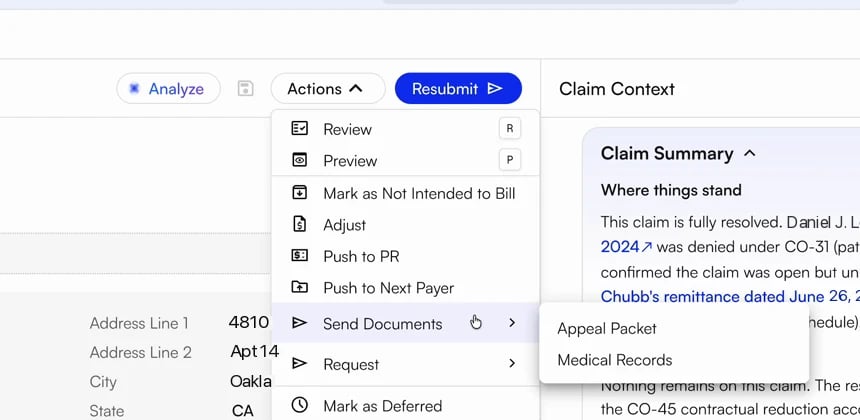
1
Choose what goes in the packet
Submission shows the denied submission you are appealing. Under Procedures to include, check each procedure this packet is for. Under Supporting documents, select files already on the claim, or drag new ones in. Click Continue To Cover Letter.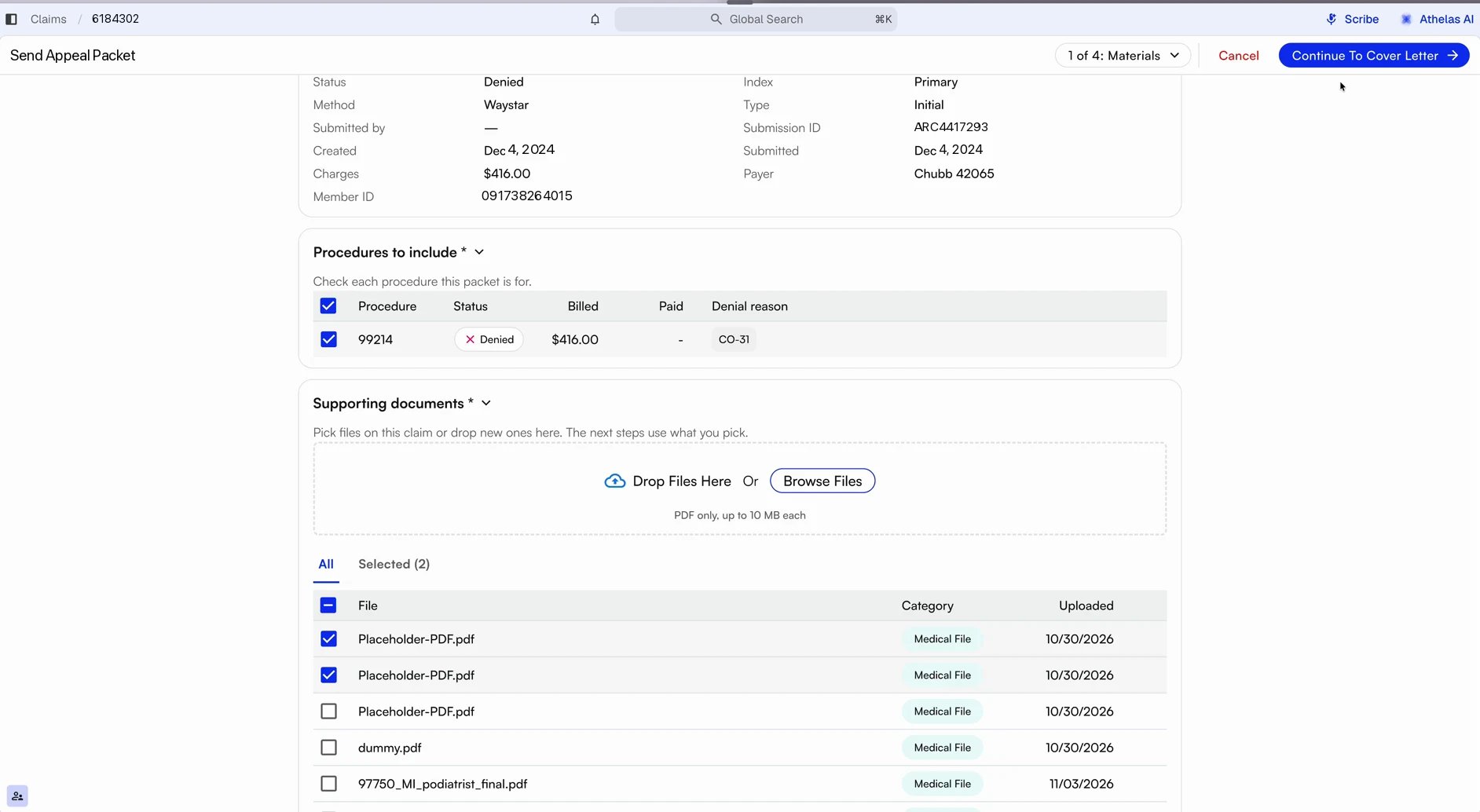
2
Review your cover letter
Athelas AI writes the cover letter from the claim and your documents. This takes about 20 seconds. Claim details holds the values on the letter, such as the patient, member ID, date of service, billed amount and payer. Grey fields come from the claim, so edit the claim to change them. Dispute reasoning is the body of the letter. Edit it as much as you need, and the preview on the right updates as you type. Click Continue To Payer Form, or Skip Cover Letter if you don’t need one.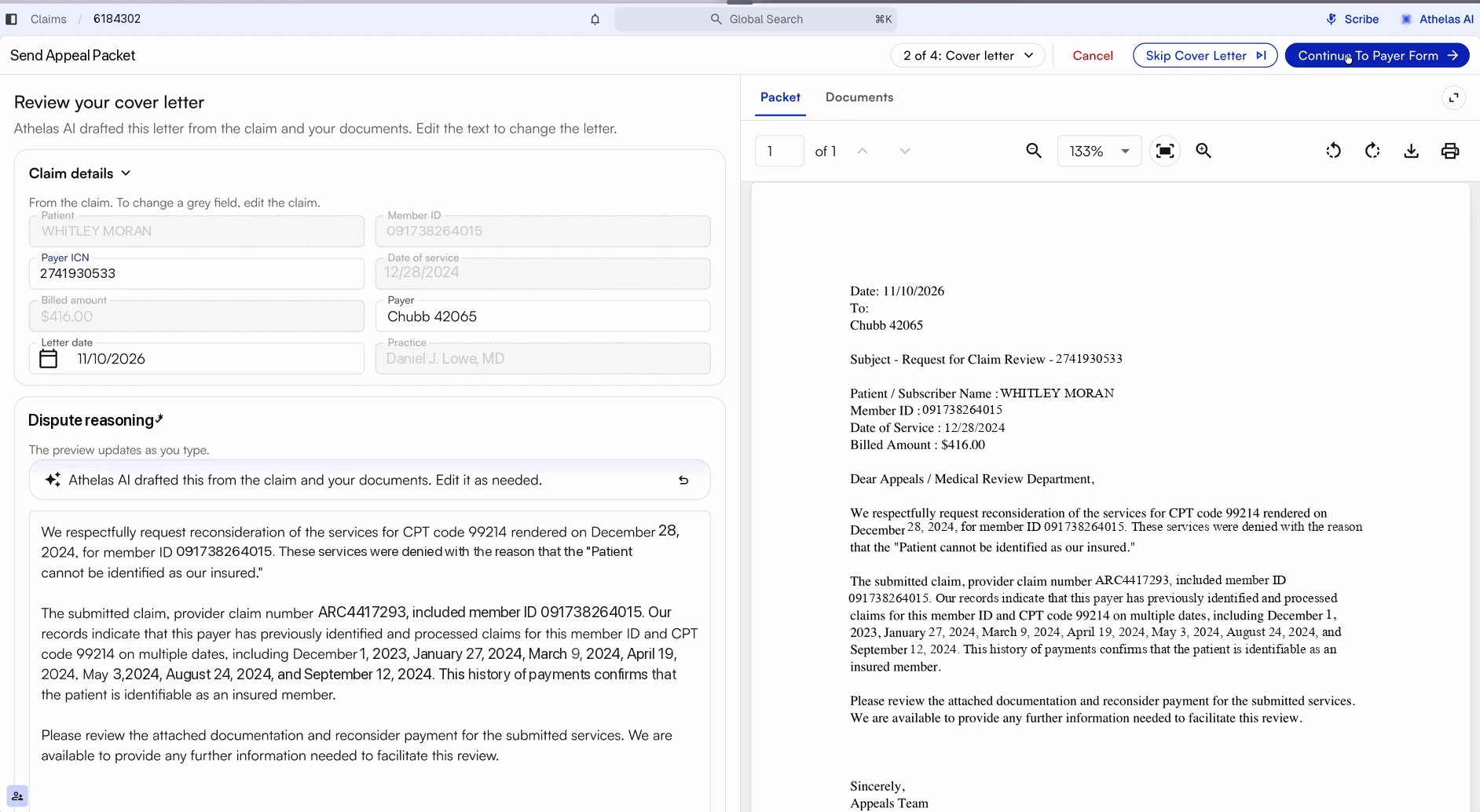
3
Check the payer form
Athelas AI fills in the payer’s appeal form from the claim and your cover letter. Check each field under Payer form against the preview, and correct anything that’s wrong. Grey fields come from the claim and are locked. Click Continue To Review, or Skip Payer Form if the payer doesn’t need a form.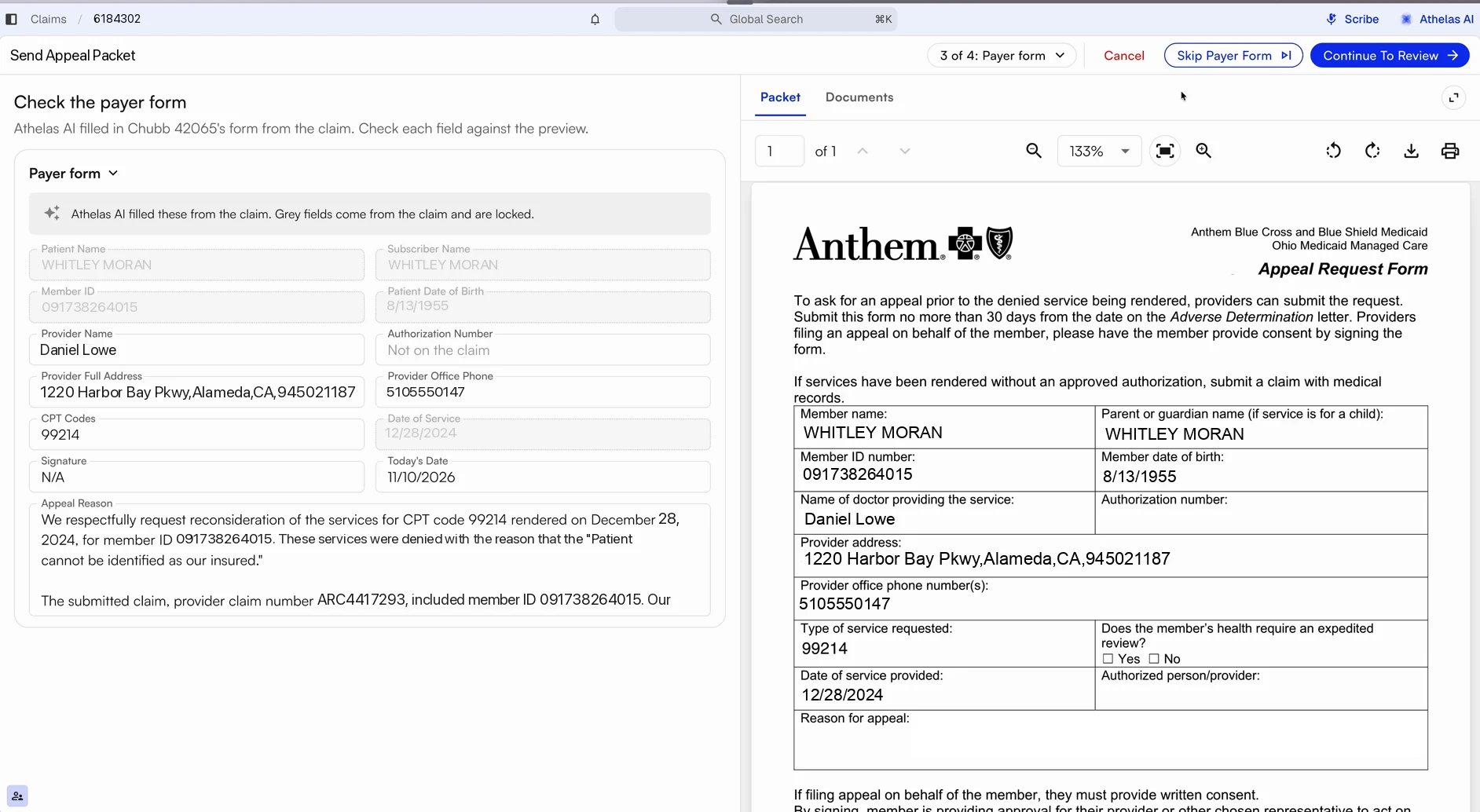
4
Review and send
Under Submission method, choose how the packet goes out and enter where it goes. Under Files in the packet, drag files into the order the payer should read them. Files go out top to bottom. Use the Packet preview to page through the whole packet. When it looks right, click the send button at the top right, for example Send By Mail.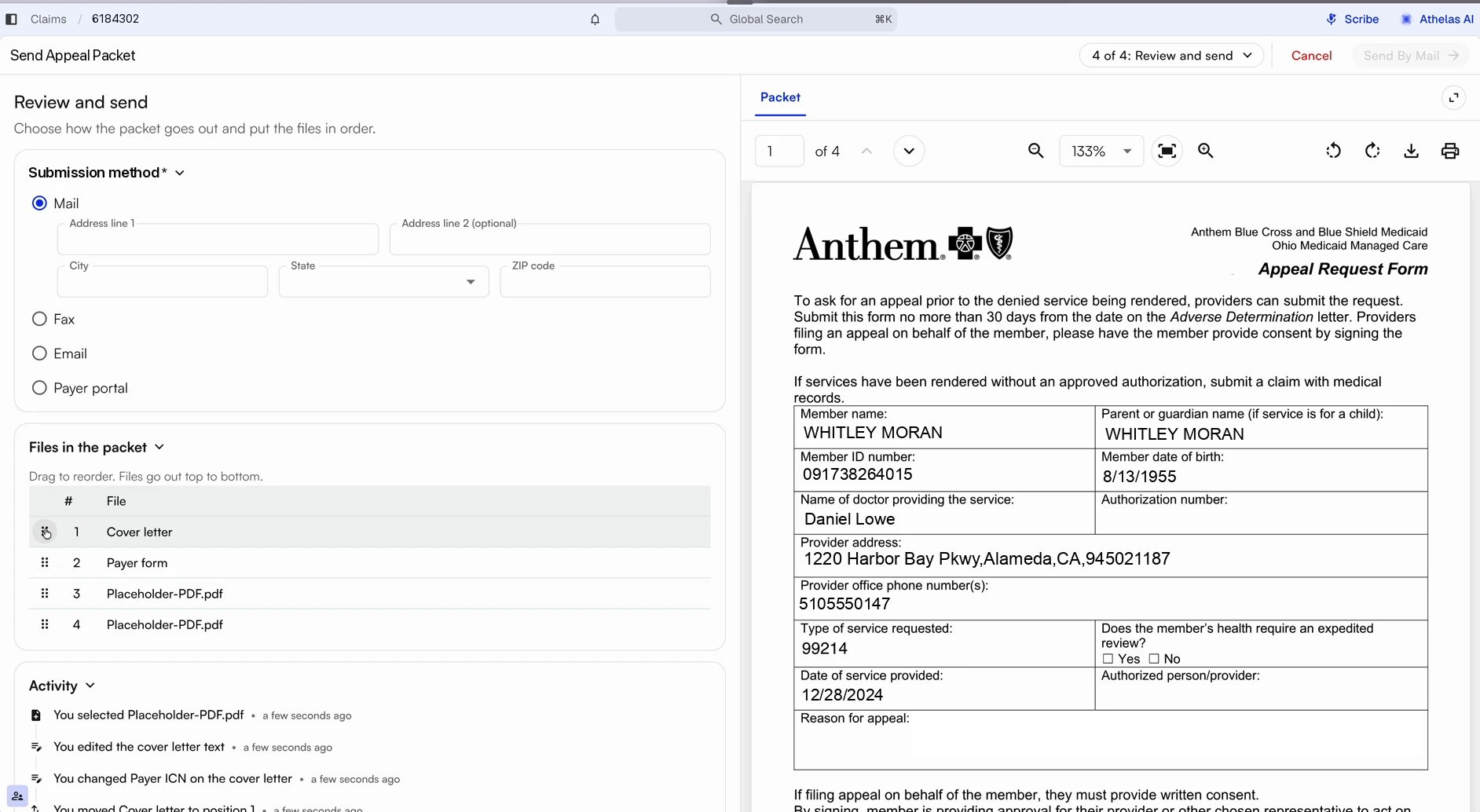
Choose How the Packet Is Sent
Note: Check the payer’s appeal address, fax or email before you send. Payers often use a different destination for appeals than for claims, and the destination can differ between first and second level appeals.
Track Your Changes
The Activity section on the last step lists what you did to the packet, such as the files you selected, the values you changed on the cover letter, and the files you moved in the packet.FAQ
Can I send documents without a cover letter or payer form?
Can I send documents without a cover letter or payer form?
Yes. Click Skip Cover Letter or Skip Payer Form on that step. If you already changed something on the step, Insights asks you to confirm before it skips. To send only medical records, choose Medical Records instead of Appeal Packet under Send Documents.
Can I rewrite the dispute reasoning?
Can I rewrite the dispute reasoning?
Yes. The draft is a starting point. Edit the Dispute reasoning text in step 2 as much as you need, and the letter preview updates as you type.
Which submission does the packet appeal?
Which submission does the packet appeal?
The denied submission shown under Submission in step 1. A claim can have several submissions, so check the submission ID and date before you continue.
How is this different from Request Appeal Submission?
How is this different from Request Appeal Submission?
Actions → Request → Request Appeal Submission, where your plan includes that service, asks the Athelas team to build the packet for you. Send Documents lets you build and send the packet yourself, right away, and choose exactly what goes in.